
There are eight ways to import recipes into momoChef, and they all end the same place: a clean, editable recipe in your own book, with ingredients separated from steps and the photos carried over. Paste a link from any recipe website, share a post straight out of TikTok or Instagram, scan a page from a cookbook, drop in a Paprika export, or paste text from a note. This page covers every source, what each one costs, and the two habits that make imports come out clean.
The short version: importing is free to try — every account gets 25 imports a month, and Premium ($0.99/month or $9.99/year) makes them unlimited.
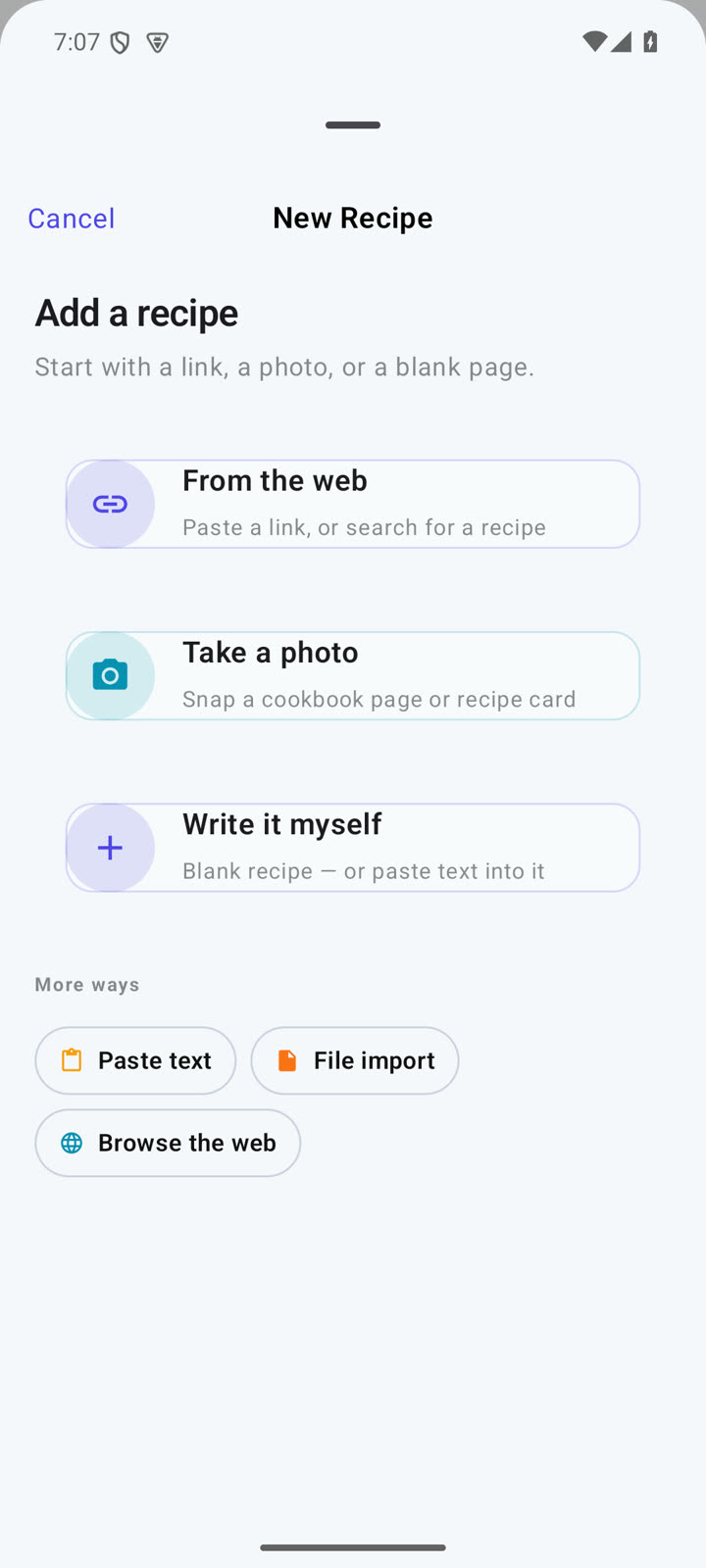
Every way to import recipes, at a glance
| Source | How it works | Plan |
|---|---|---|
| Recipe website link | Paste the URL — the page is read and parsed into a full draft | Free |
| Instagram or TikTok post | Paste the post's link, or share it to momoChef from the app | Free |
| YouTube or TikTok video | Paste the video link; the recipe is read from captions, audio, and on-screen text | Premium |
| Photo or scan | Snap a cookbook page or pick a photo; the text is read back out | Premium |
| Pasted text | Copy a recipe from Notes, a doc, or a message and paste it in | Free |
| Recipe files | PDF, ZIP, Paprika export, or JSON — parsed on your device, not uploaded | Free |
| Share sheet (mobile) | Tap Share in any app and pick momoChef | Free |
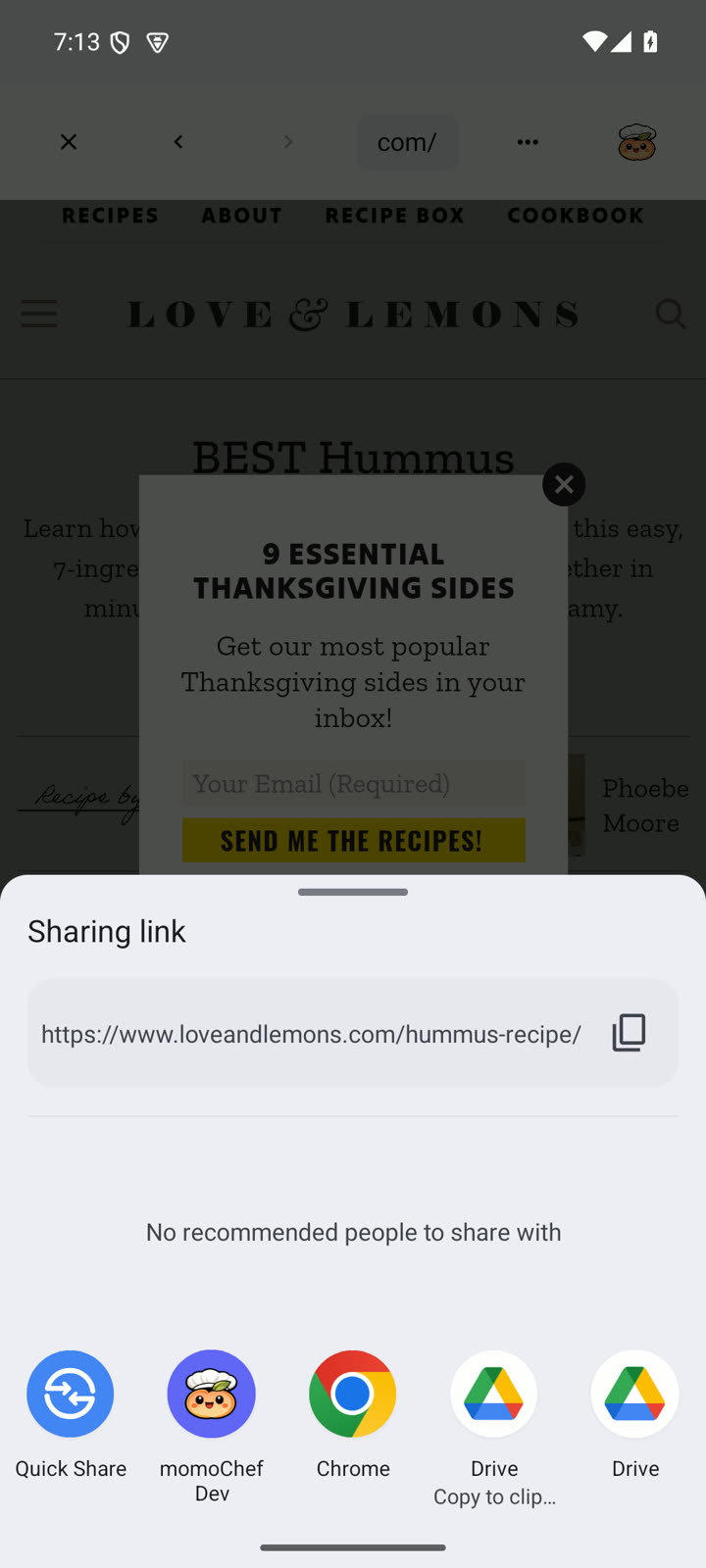
| In-app browser (Android) | Open the page inside momoChef and tap Import | Free |
One thing all of these have in common: nothing goes live until you say so. Every import lands as a reviewable draft first — you check the ingredients and steps, fix anything the parser misread, and only then save it into a book.
How to import recipes, step by step
- Open the import screen. On the web it's Recipes → Import. In the Android app, tap the + button — the Add a recipe screen lists every source on one page.
- Pick the source that matches what you have. A link for a website or social post, Photo for a page or card, Paste text for anything written out, File import for a PDF or an export from another app.
- Give momoChef the recipe. Paste the URL, take or choose the photo, paste the text, or select the file. In the app, the website screen also has a search field — if you only remember the dish's name, search for it and open the recipe page from there.
- Wait for the parse. A link import reads the page and pulls out the title, ingredients, steps, times, and nutrition when the site reports it. A video import runs longer — it reads captions first, then tries the audio, then the on-screen text.
- Review the draft. Every import opens a review screen before anything is saved. This is where you catch the parser's mistakes — a missing step, a merged ingredient, a serving count that doesn't match the site.
- Pick the book and save. Imports land in the recipe book you choose, and the editor stays open if something still needs fixing.
- Cook from it like any other recipe. Imported recipes scale, print, translate, and join meal plans exactly like recipes you typed by hand.
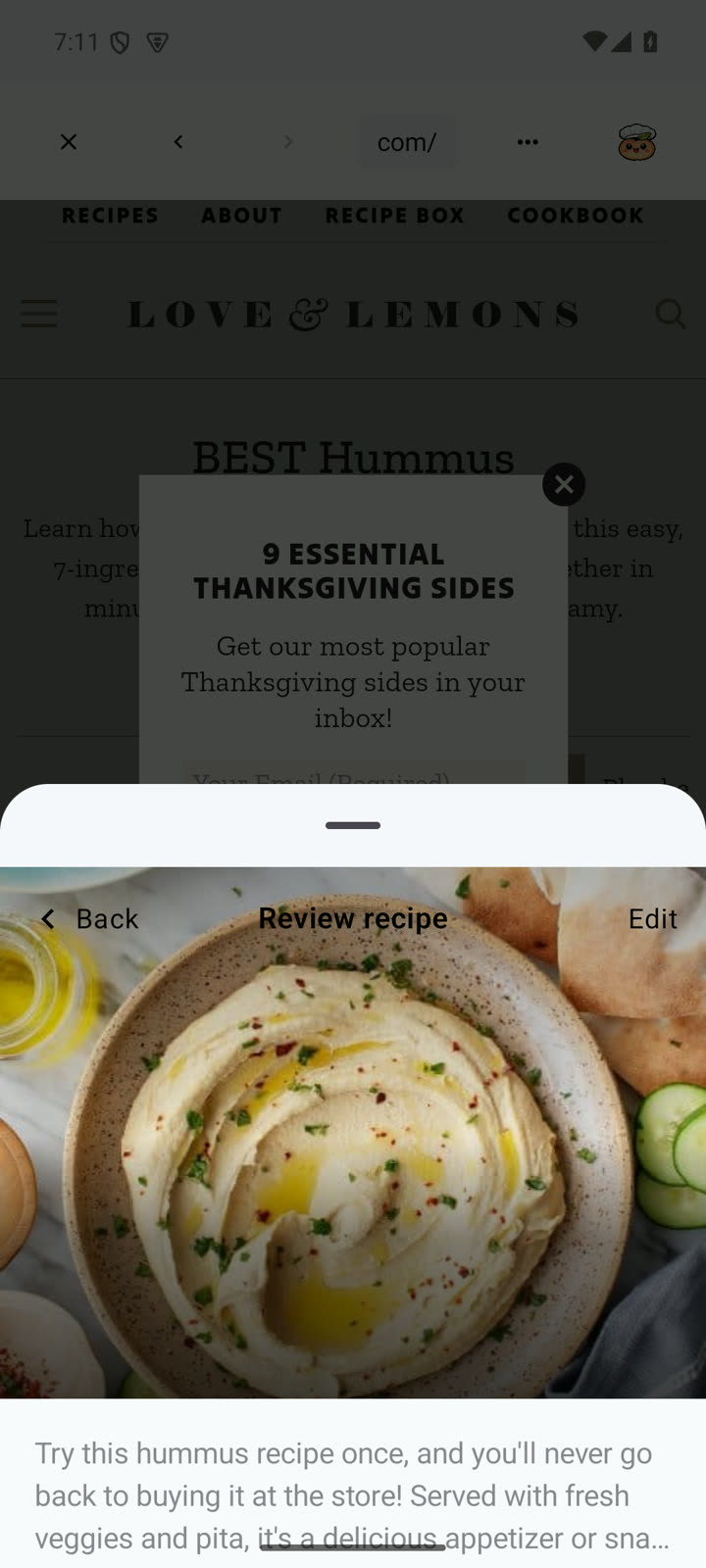
Import recipes from a website link
The URL field is the workhorse. Paste a link to any recipe page with structured recipe data and momoChef parses it into a draft: ingredients, steps, prep and cook times, nutrition when the site publishes it, and the photos, which are copied to your recipe on save.
Two things worth knowing:
- Multi-recipe pages become a picker. Some pages collect many recipes — a roundup, an archive export. When the parse finds several, momoChef shows them as a checklist; tick the ones you want and they import together.
- Some sites block imports. A few recipe sites refuse automated readers. When that happens you'll see a notice saying the import was blocked, with suggestions for other ways in — not a silent failure. The browser extension helps here too: on Instagram and TikTok, where the block is automatic, the extension fetches the post from your own browser instead of from a server. In the Android app you can also skip your browser entirely: Browse the web opens the page inside momoChef, and the chef-hat menu offers Import right on the page.
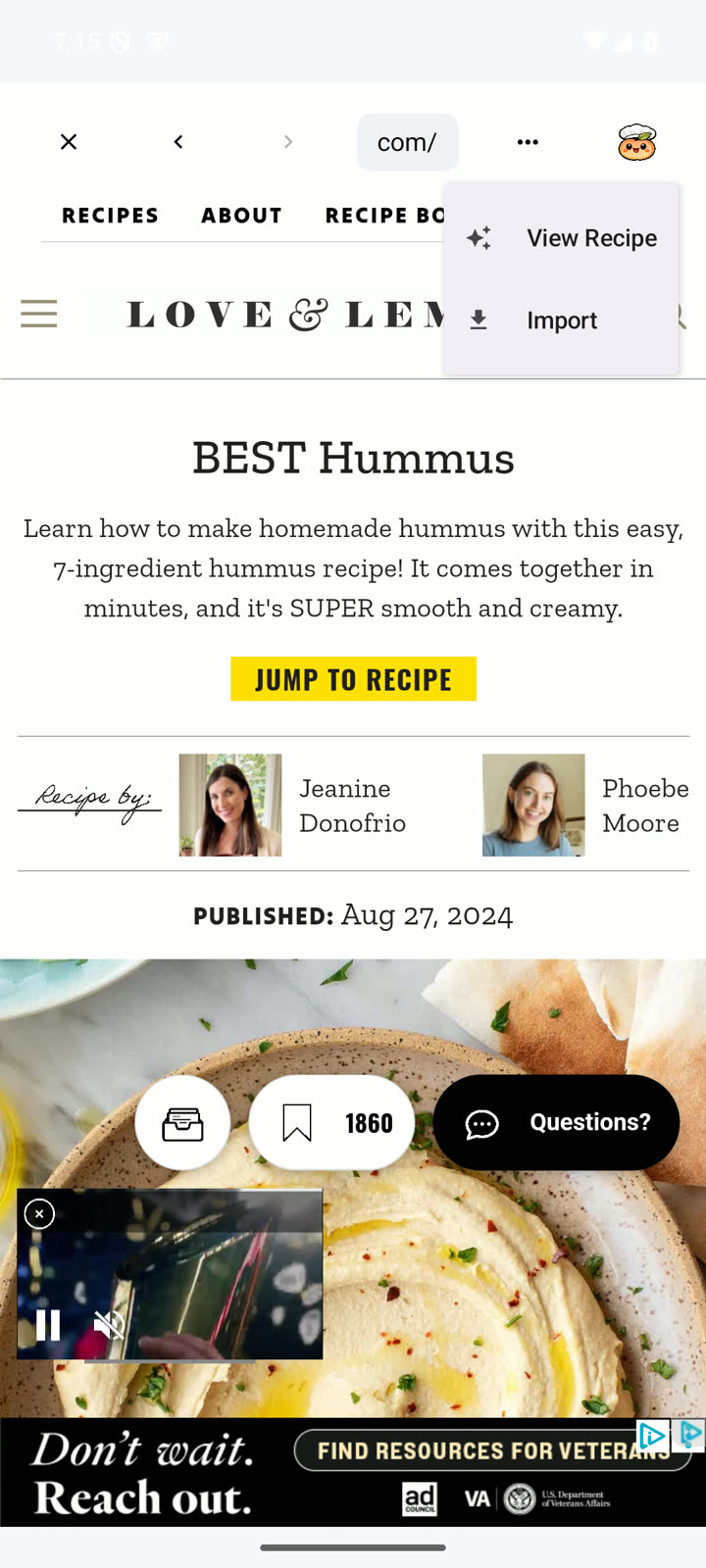
Import recipes from social apps: TikTok, Instagram, and YouTube
Social posts are where recipes live now, and the import handles them three ways. The fastest is the share sheet: in TikTok, Instagram, or YouTube, tap Share and pick momoChef — the post's link lands in the app and the import starts from there. You can also paste the post's URL into the import screen directly.
What the import can read depends on the post. A recipe written out in the caption parses directly. For videos without a written recipe — most of TikTok and YouTube — the import runs a transcription pipeline: it reads the video's captions first, then listens to the spoken audio, then reads text that appears on screen, and rebuilds the recipe from the three together. That video pipeline is part of Premium, because transcription costs more to run than a page parse.
When a post genuinely has no recipe in it — a restaurant reel, a plating video — momoChef won't hand you an empty husk. It offers to save the post itself into a book, so the link is kept and you can convert it later by pasting the recipe in when the creator posts the written version.
Scan recipes from a photo
Photo import reads recipes out of images: a page from a cookbook, a handwritten card, a screenshot of a post. Tap Photo, snap the page with the camera or pick an image from your library, and the text is read back out into the draft — ingredients and steps separated, ready to edit. Very large photos are resized automatically before the read; files over 10 MB are declined with a friendly message rather than a failure.
This is the path for the cookbooks on your shelf: one photo per page or spread, and the recipes that only existed on paper are searchable, scalable, and in the meal planner with everything else. Photo import is a Premium feature.
Paste recipe text
The free path that always works. If the recipe is written out anywhere — a note, an email, a message from a relative, a website that blocks everything else — copy the text and paste it into the paste screen (on mobile there's a Paste from Clipboard button). The parser splits ingredients from steps and reads quantities, so what lands in the draft is structured, not one blob.
The habit that makes pasted imports come out clean: each ingredient on its own line, and each step on its own line. Recipes written that way parse almost perfectly; a wall of text with everything run together parses worse.
Import recipe files: PDF, Paprika, ZIP, and JSON
Coming from another recipe app or a pile of PDFs, the File import tab takes four formats:
- PDF — a single recipe document parses into one draft; a cookbook-sized PDF with many recipes opens the multi-recipe picker, one draft per recipe.
- Paprika exports (
.paprikarecipesarchives and single.paprikarecipefiles) — the direct route when moving from Paprika, photos included. - ZIP archives — for bulk exports from other tools.
- JSON — raw recipe data from anywhere.
The Paprika, ZIP, and JSON formats are parsed on your device — the parser runs in your browser and the file never leaves it; only the recipes you choose to save are stored in momoChef. PDFs are the exception: they're read server-side, so the PDF itself is uploaded for the parse.
What importing costs
Every account imports 25 recipes a month free, on any source — links, pasted text, and files included. The counter shows on the import screen ("12 of 25 imports remaining"), and it resets monthly. Premium ($0.99/month or $9.99/year) removes the cap: unlimited imports, plus the two Premium sources — photo import and video transcription.
Fixing an import that came out wrong
Parsers are good and occasionally wrong. When a draft has a problem:
- Fix it in review — the draft editor is a full recipe editor; add the missing step, split the merged ingredient, correct the servings.
- Re-import instead of patching — if a website draft came out mangled, a fresh paste of the same recipe's text is often cleaner than fifteen small edits.
- Keep the source link — imported recipes remember where they came from, so the original page is one tap away when you need to double-check an amount.
FAQ
Is importing free? Every account gets 25 imports a month free. Premium makes imports unlimited and adds photo import plus video transcription.
Which sites can I import from? Any recipe page that publishes structured recipe data — that's most of them. Sites that block automated readers show a blocked notice rather than a broken import.
Does a TikTok import need Premium? Importing from a TikTok or Instagram post with a written caption is free. The video pipeline that transcribes recipes from audio and on-screen text is Premium.
Do my photos come over from Paprika? Yes — Paprika exports import with their photos. The files are parsed on your device and only the recipes you save are stored in momoChef.
Can I import several recipes at once? Yes. Multi-recipe pages, cookbook PDFs, and archive exports all open the multi-recipe picker — choose which drafts to keep and import them in one pass.
What happens to a social post with no recipe? You can save the post itself into a book and convert it to a recipe later by pasting the recipe text.
Start small: import recipes from one website you cook from every week — paste the link, review the draft, save it into a book. Then do yesterday's TikTok. After five or six imports your library stops being a bookmarks folder and starts being a cookbook. The organize your recipes guide covers books and labels once the recipes are in, the recipe chrome extension guide covers the browser-extension helper, and the recipe format guide covers writing your own recipes so they parse cleanly. momoChef is free to start and works in the web app or the iOS app.