

Getting Started with the iOS App
Last updated: 2026-08-19
Welcome to momoChef for iOS. This guide will help you download the app, set up your account, and create your first recipe in just a few minutes.
Download the App
momoChef is available for free on the App Store. Search for "momoChef" or use the link below to download directly.
- Requires iOS 16.0 or later
- Compatible with iPhone and iPad
- Free to download with optional premium features
First-Time Setup
Create Your Account
When you first open momoChef, you'll be prompted to create an account or sign in.
- Sign up with email: Enter your email address and create a password
- Sign up with Apple: Use your Apple ID for quick, secure sign-in
- Sign up with Google: Connect your Google account for easy access
Tip: Signing up with Apple or Google means one less password to remember, and your account will sync automatically across devices.
Welcome Flow
After creating your account, momoChef will guide you through a brief welcome flow:
- Choose your cooking experience level
- Select dietary preferences (optional)
- Create your first recipe book to organize recipes
App Navigation
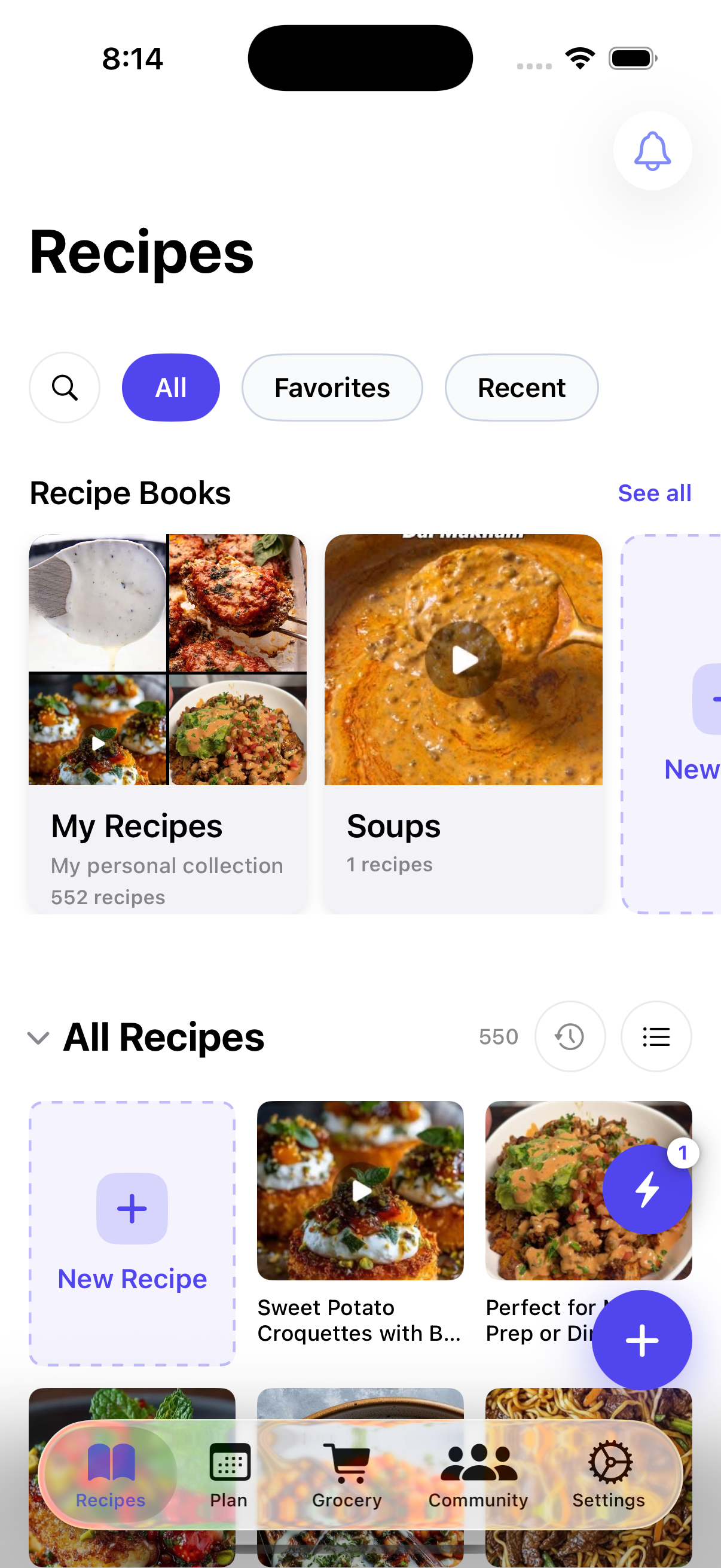
momoChef uses a simple tab-based navigation at the bottom of the screen.
Main Tabs
- Recipes: Browse and manage all your recipes organized by book
- Community: Discover public recipes, join groups, and connect with friends
- Meal Plan: Plan your weekly meals with the calendar view
- Grocery Lists: Manage shopping lists and pantry items
- Settings: Account settings, preferences, and premium features
Key Actions
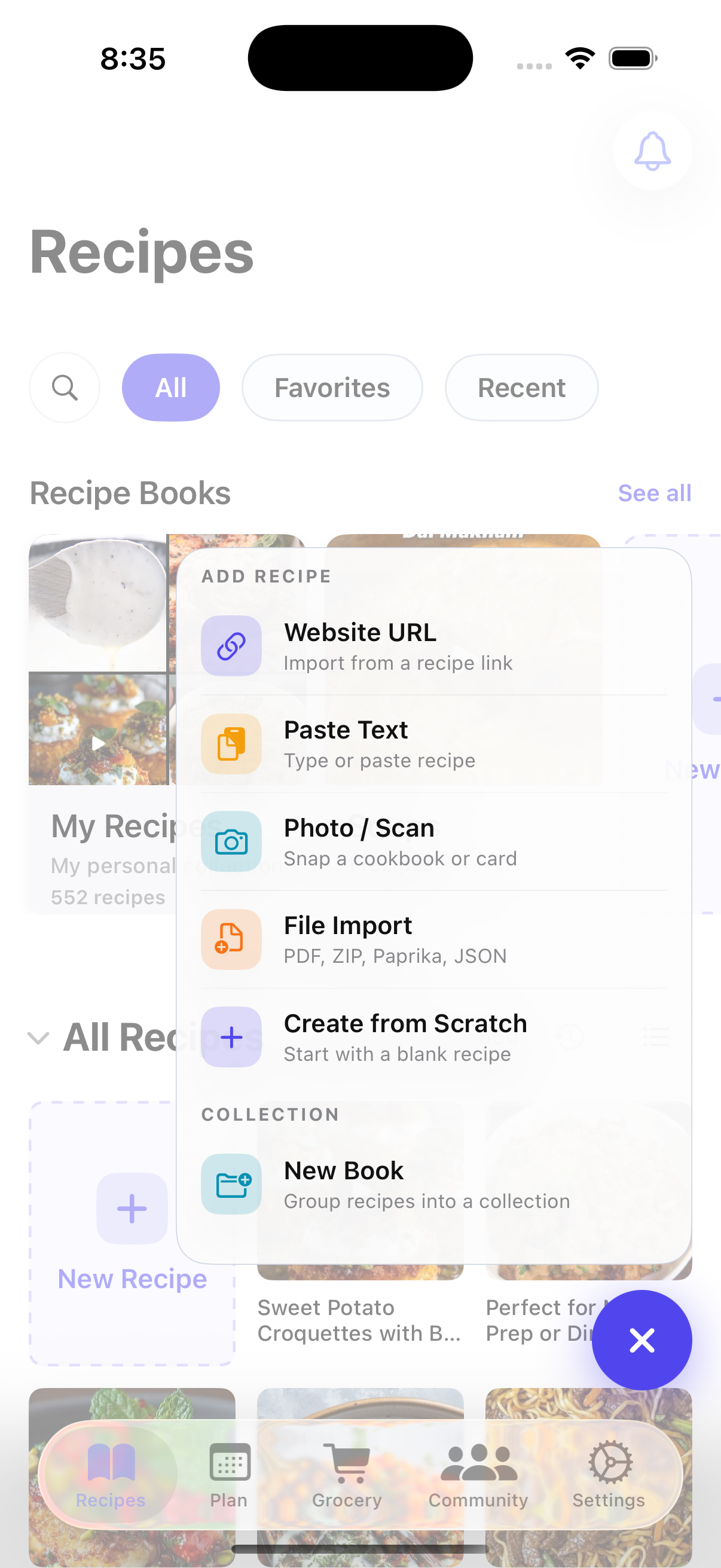
- Add Recipe (+): The plus button in the navigation bar lets you add new recipes, import from URLs, or scan from photos
- Search: Pull down on any list to reveal the search bar
- Context Menus: Long-press on recipes and books for quick actions
Creating Your First Recipe
There are several ways to add recipes to momoChef. Here's how to create one manually:
Manual Entry
- Tap the + button in the top-right corner
- Select New Recipe from the menu
- Fill in the recipe details:
- Title (required)
- Description
- Servings and prep/cook time
- Ingredients (one per line)
- Instructions (one step per line)
- Tap Save to add the recipe to your collection
Other Import Methods
momoChef also supports importing recipes from:
- URL: Paste a recipe URL and we'll extract the details automatically
- Photo: Take a photo of a printed recipe or cookbook page
- Share Extension: Share recipes directly from Safari or other apps
See our iOS Import Guide for detailed instructions.
Organizing Recipes
Recipe Books
Recipes are organized into books. Think of them as folders or collections:
- Create books for different categories (Dinner, Desserts, Holiday, etc.)
- Share books with family members or friends
- Set books as public to share with the community
Tags
Add tags to recipes for flexible organization:
- Tags like "quick", "vegetarian", or "weeknight"
- Filter recipes by tags in any book
- Tags sync across all your devices
Next Steps
Now that you're set up, explore these features:
- Import recipes from your favorite websites
- Try cooking mode for hands-free recipe viewing
- Add home screen widgets for quick access
- Join the community to discover new recipes
- Learn about sync and backup to keep your data safe