

Recipe Management
Last updated: 2026-08-19
Learn how to create, edit, organize, and find your recipes in momoChef. This guide covers everything you need to know about managing your recipe collection.
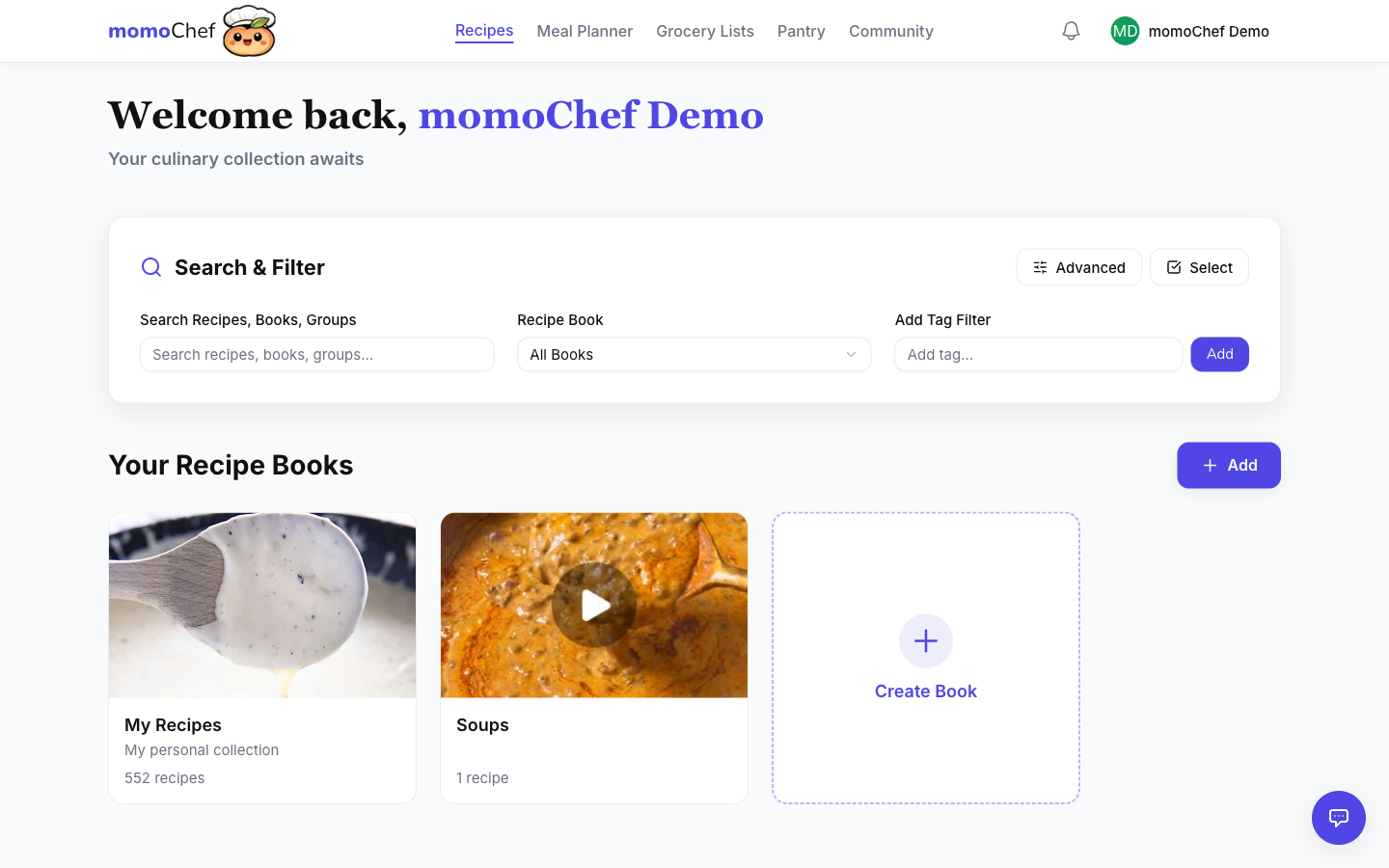
Creating Recipes
There are several ways to add new recipes to your collection.
Manual Entry
To create a recipe from scratch:
- Click Add Recipe from the sidebar or dashboard
- Select Create Manually
- Fill in the recipe details (title, description, servings, times)
- Add your ingredients, one per line
- Add the cooking instructions
- Optionally add tags, a photo, and nutrition information
- Click Save Recipe
Import from URL
Save time by importing recipes from your favorite websites:
- Click Add Recipe
- Select Import from URL
- Paste the recipe URL
- Click Import
- Review the imported content and make any edits
- Save your recipe
Tip: Our parser works with most major recipe sites. If an import doesn't work perfectly, you can always edit the recipe afterward.
Import from Photo (Premium)
Take a photo of a recipe from a cookbook or recipe card:
- Click Add Recipe
- Select Import from Photo
- Upload or take a photo of the recipe
- Our AI will extract the text and parse it into ingredients and instructions
- Review and save
Bulk Import
Moving from another recipe app? Import all your recipes at once:
- Import from Paprika, CopyMeThat, and other popular apps
- Upload ZIP files containing multiple recipes
- Import from JSON or CSV files
See our Recipe Import guide for detailed instructions.
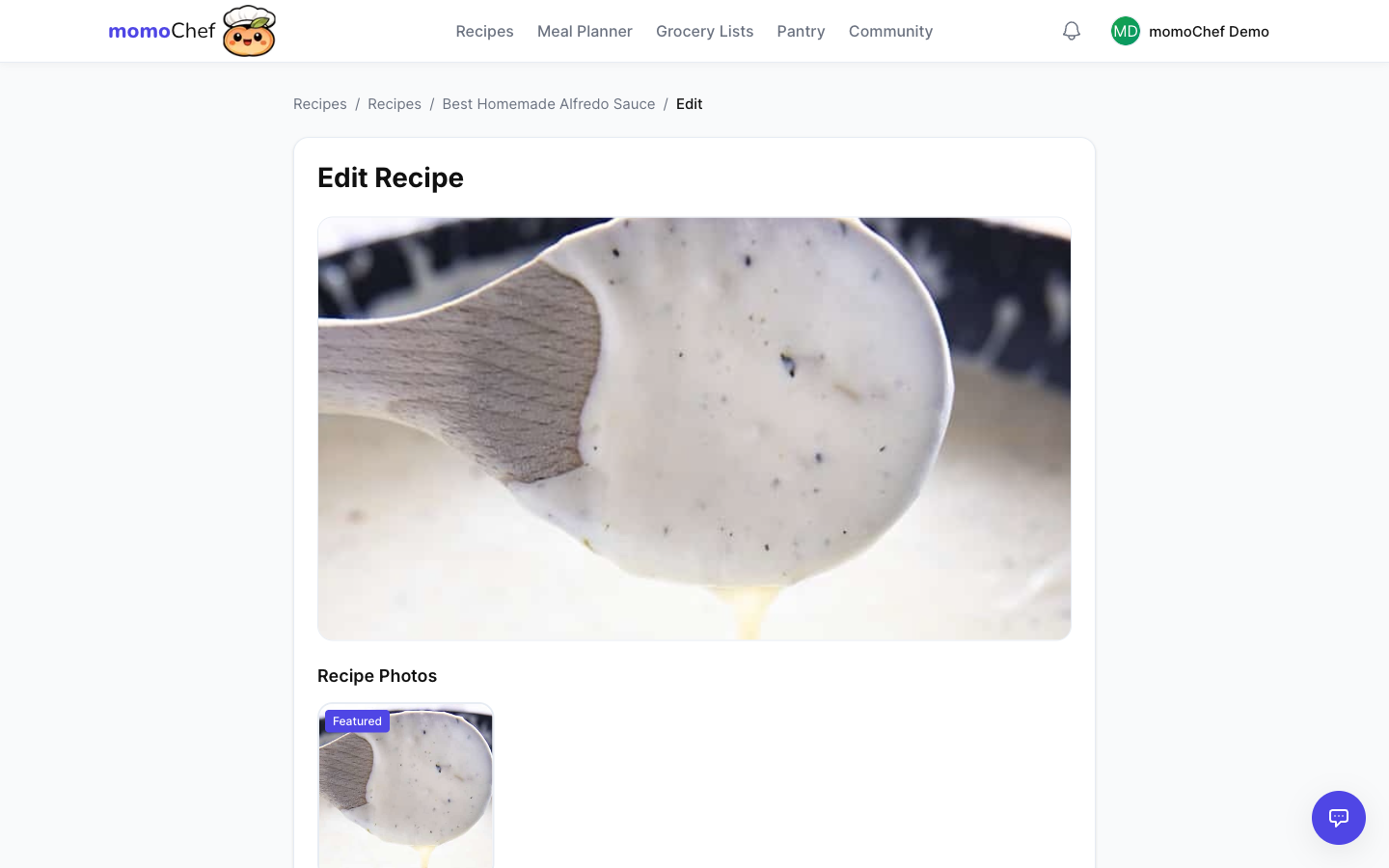
Editing Recipes
To edit an existing recipe:
- Navigate to the recipe you want to edit
- Click the Edit button (pencil icon)
- Make your changes
- Click Save
Edit Any Field
You can modify any part of a recipe:
- Title and description
- Servings, prep time, and cook time
- Ingredients (add, remove, or reorder)
- Instructions (add, remove, or reorder steps)
- Tags and categories
- Photo
- Nutrition information
- Notes and tips
Version History
momoChef keeps track of changes to your recipes. If you make a mistake, you can view the history and restore a previous version.
Recipe Books and Organization
Keep your recipes organized with recipe books. Think of them as folders or collections for grouping related recipes.
Creating a Recipe Book
- Go to Recipes in the sidebar
- Click + New Book
- Enter a name and optional description
- Choose a cover color or upload an image
- Click Create
Adding Recipes to Books
When viewing a recipe, click Add to Book to add it to one or more recipe books. A recipe can be in multiple books at once.
Book Types
- Personal Books: Private books only you can see
- Shared Books: Invite friends and family to collaborate
- Public Books: Share your collection with the momoChef community
Tip: Create books based on how you cook: "Weeknight Dinners," "Holiday Baking," "Kid-Friendly," etc.
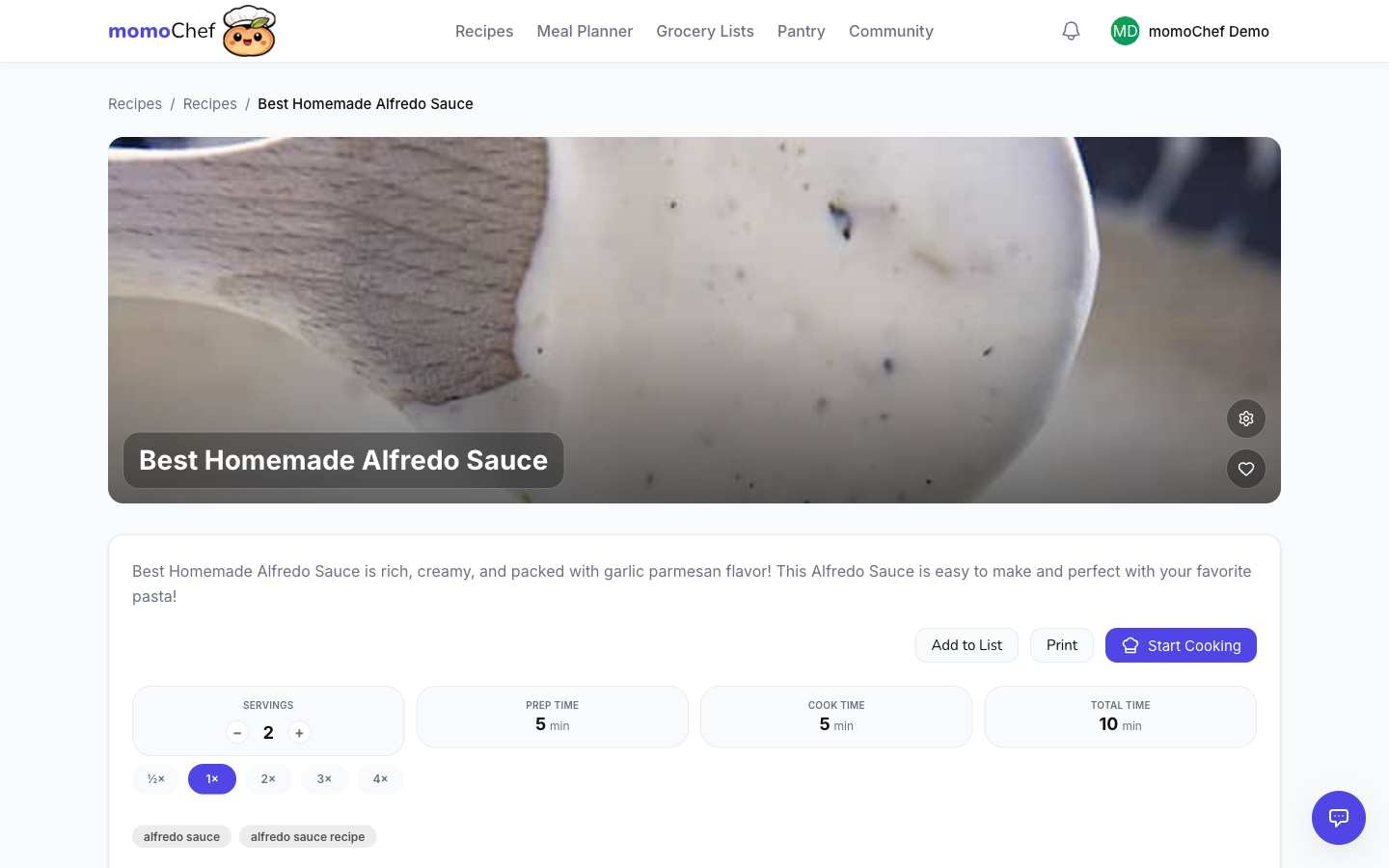
Tags and Categories
Tags help you find and filter recipes quickly. Add multiple tags to each recipe for flexible organization.
Adding Tags
When editing a recipe, add tags in the tags field:
- Type a tag name and press Enter to add it
- Click an existing tag to remove it
- Tags are automatically suggested based on what you've used before
Tag Ideas
- Cuisine: Italian, Mexican, Asian, Mediterranean
- Meal Type: Breakfast, Lunch, Dinner, Snack, Dessert
- Dietary: Vegetarian, Vegan, Gluten-Free, Dairy-Free, Keto
- Occasion: Quick, Holiday, Party, Comfort Food
- Main Ingredient: Chicken, Beef, Seafood, Vegetables
- Cooking Method: Slow Cooker, Instant Pot, Grill, Oven
Filtering by Tags
On the Recipes page, click any tag to filter your recipes. Combine multiple tags to narrow down results.
Search and Filtering
Find any recipe instantly with powerful search and filtering options.
Quick Search
Use the search bar at the top of any page:
- Search by recipe name
- Search by ingredient
- Search by tag
- Results appear as you type
Advanced Filters
On the Recipes page, use filters to narrow down results:
- By Book: Show only recipes in a specific book
- By Tags: Select one or more tags
- By Time: Recipes under 30 minutes, 1 hour, etc.
- By Dietary: Vegetarian, Vegan, Gluten-Free, etc.
- By Ingredient: Include or exclude specific ingredients
Sorting
Sort your recipe list by:
- Recently added
- Alphabetically (A-Z or Z-A)
- Recently cooked
- Rating
- Prep time
- Cook time
Scaling Recipes
Need to cook for a crowd? Scale any recipe to change the serving size.
How to Scale
- Open a recipe
- Find the serving size selector
- Adjust the number of servings up or down
- All ingredient quantities update automatically
Smart Scaling
momoChef intelligently scales ingredients:
- Quantities are converted to appropriate units (e.g., 8 tbsp becomes 1/2 cup)
- Fractions are used for easy measuring (1/2, 1/3, 1/4)
- Instructions remain the same (you may need to adjust cooking times)
Tip: Scaling works best with recipes that have proper ingredient parsing. If scaling seems off, check that ingredients are formatted correctly.
Unit Conversion
Convert between different measurement units with ease.
Available Conversions
- Volume: cups, tablespoons, teaspoons, ml, liters, fluid ounces
- Weight: ounces, pounds, grams, kilograms
- Temperature: Fahrenheit, Celsius
How to Convert
On any recipe page, click the Convert button to switch between:
- Metric and Imperial measurements
- Individual ingredient units
Setting Your Preference
Set your default unit system in Settings > Preferences:
- Choose Metric or Imperial as your default
- All new recipes will use your preferred units
- Imported recipes are automatically converted
Related Topics
- Recipe Import - Import recipes from URLs, photos, and files
- Sharing & Collaboration - Share recipes with friends and family
- Cooking Mode - Use recipes while cooking
- Meal Planning - Add recipes to your meal plan