

Community Features
Last updated: 2026-08-19
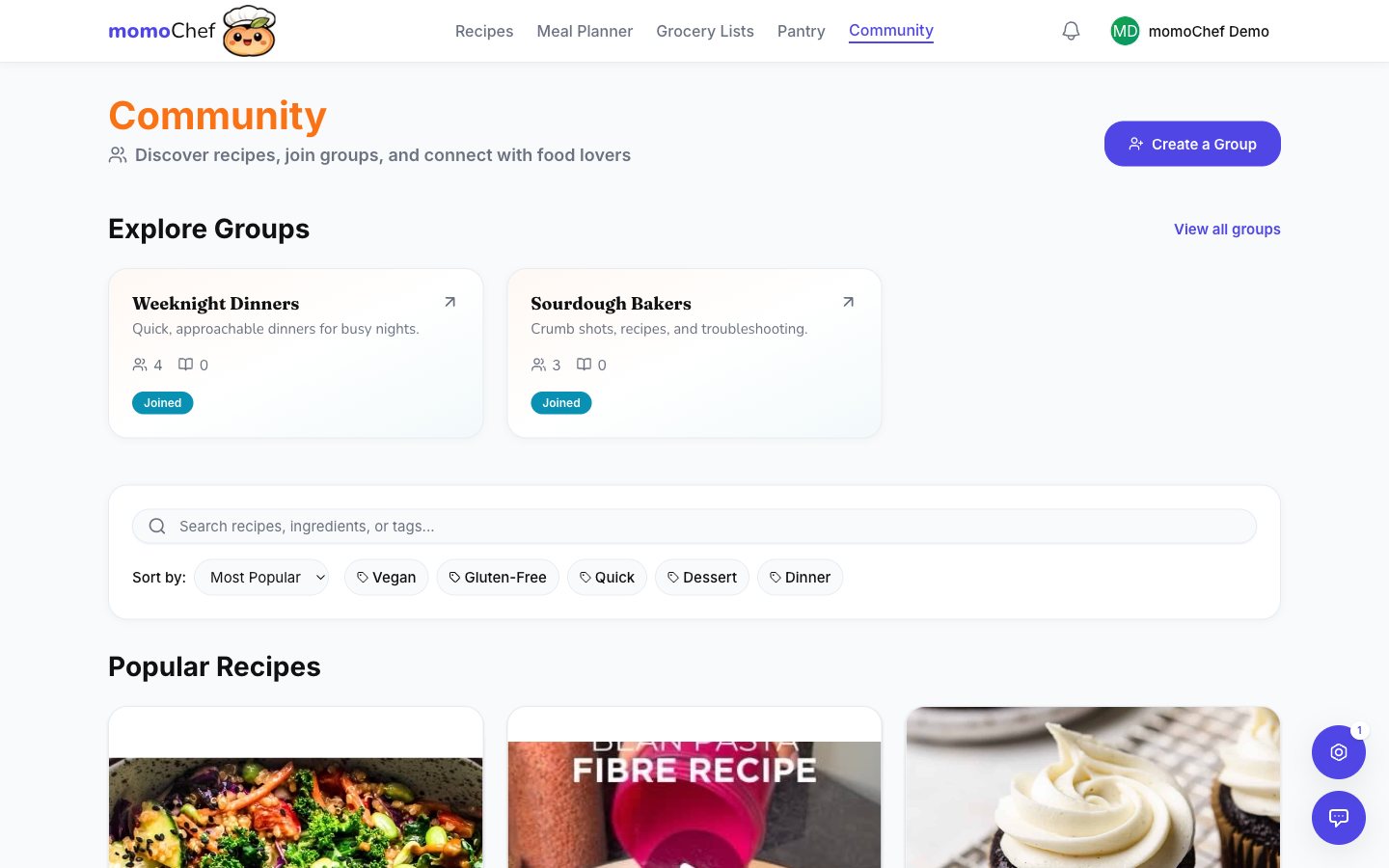
Connect with other home cooks, discover amazing recipes, and share your culinary creations with the momoChef community.
Public Recipe Books
Public recipe books are collections shared by other momoChef users. Browse thousands of recipes curated by home cooks just like you.
Browsing Public Books
- Go to Community in the sidebar
- Click on Public Books
- Browse by category or use the search
- Click on a book to view its recipes
Book Categories
Find books organized by:
- Cuisine: Italian, Mexican, Asian, Mediterranean, and more
- Diet: Vegetarian, Vegan, Keto, Gluten-Free, etc.
- Occasion: Weeknight Dinners, Holiday, Party Food
- Skill Level: Beginner, Intermediate, Advanced
- Popular: Most saved and most cooked recipes
Creating a Public Book
Share your recipes with the community:
- Create a recipe book in your Recipes section
- Add recipes to the book
- Click Share and select Make Public
- Add a description and category
- Your book is now discoverable by other users
Tip: Add a compelling cover image and description to attract more followers to your public book.
Discovering Recipes
Find inspiration from recipes shared by the community.
Community Feed
The main community page shows:
- Trending: Popular recipes this week
- New: Recently shared recipes
- From Following: Recipes from people you follow
- Recommended: Personalized suggestions based on your tastes
Search and Filter
Find exactly what you're looking for:
- Search by recipe name, ingredient, or cuisine
- Filter by dietary restrictions
- Filter by cooking time
- Filter by rating
Saving Community Recipes
Found a recipe you love? Save it to your collection:
- Click on a recipe to view it
- Click Save Recipe
- Choose which of your recipe books to save it to
- The recipe is now in your collection
Copying vs. Following
When you save a community recipe:
- Copy: Creates your own version that you can edit
- Follow: Links to the original; updates if the author changes it
Following Users
Follow your favorite cooks to see their latest recipes in your feed.
Following Someone
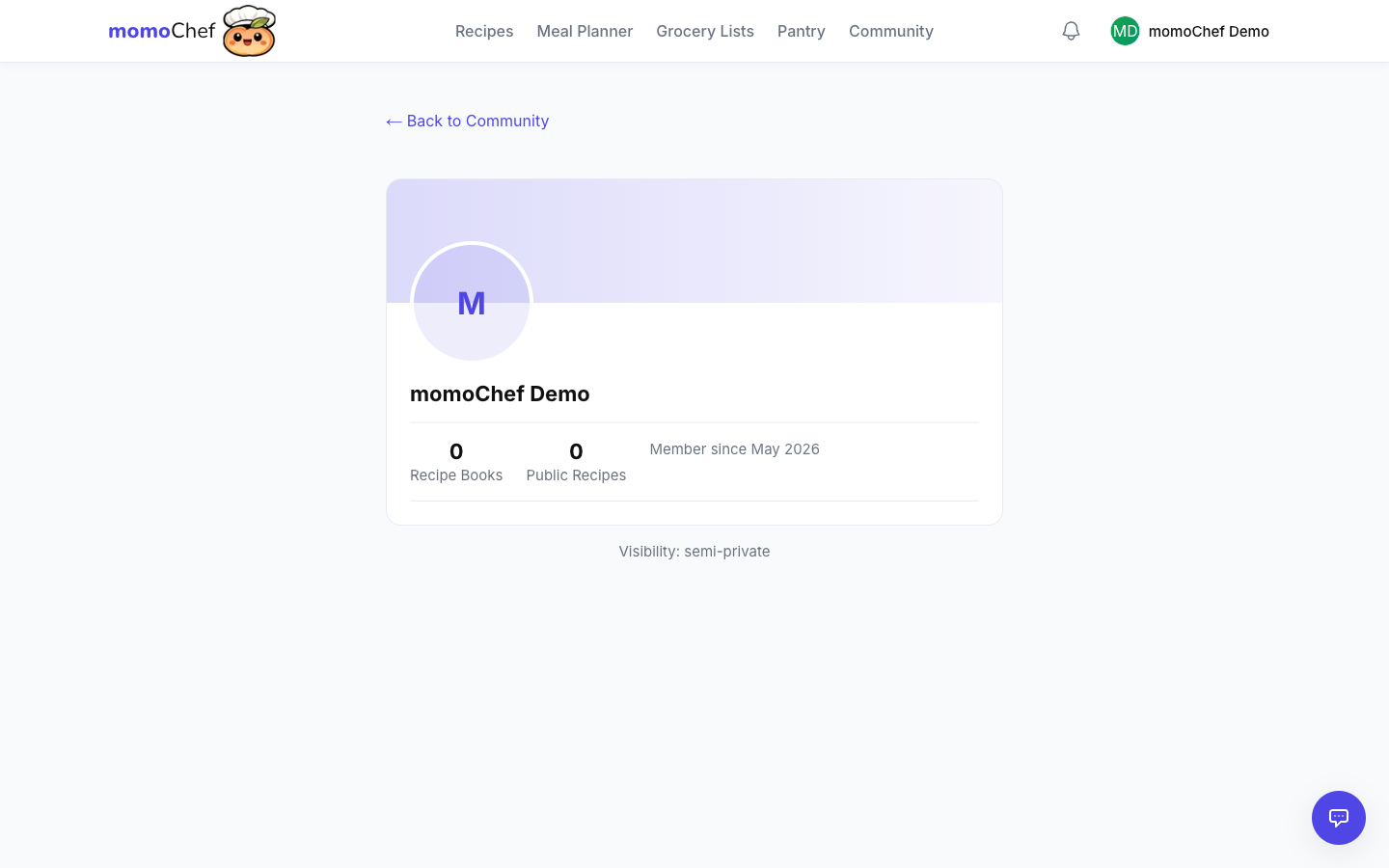
- Go to a user's profile (click their name on any recipe)
- Click Follow
- Their new recipes will appear in your Community feed
Finding People to Follow
- Browse top contributors in each category
- See who created recipes you've saved
- Search for friends by username or email
- Connect your contacts to find friends already on momoChef
Your Followers
Build your own following:
- Share great recipes publicly
- See who's following you in your profile
- Get notified when someone follows you
Blocking Users
If needed, you can block users:
- Go to the user's profile
- Click the three-dot menu
- Select Block
- They won't be able to see your content or contact you
Groups
Join or create groups around shared cooking interests.
What are Groups?
Groups are communities within momoChef focused on specific topics:
- Cooking styles (Instant Pot, Air Fryer, Sous Vide)
- Dietary preferences (Keto, Vegetarian, Whole30)
- Cuisines (Italian Cooking, Asian Fusion)
- Local communities (NYC Home Cooks, London Foodies)
- Special interests (Bread Baking, Cocktail Making)
Joining a Group
- Go to Community > Groups
- Browse public groups or search for specific topics
- Click Join on any public group
- For private groups, click Request to Join
Creating a Group
- Go to Community > Groups
- Click Create Group
- Enter a name, description, and category
- Choose public or private
- Add a cover image
- Invite members to join
Group Features
- Shared Recipe Books: Group members can contribute recipes
- Discussions: Post questions, tips, and ideas
- Events: Organize cooking challenges or virtual cook-alongs
- Announcements: Group admins can post updates
Tip: Create a private group for your family to share recipes and coordinate meal planning.
Direct Messaging
Chat directly with other momoChef users to share recipes and cooking tips.
Sending a Message
- Go to Messages in the sidebar
- Click New Message
- Search for a user by name or username
- Type your message and send
Sharing Recipes via Message
- Open any recipe
- Click Share
- Select Send to Friend
- Choose the recipient
- Add a message and send
Message Features
- Send text messages and recipe links
- Share recipe books
- Create group conversations with multiple people
- Receive notifications for new messages
Privacy Settings
Control who can message you:
- Everyone: Any momoChef user can message you
- Friends Only: Only people you follow can message you
- No One: Disable direct messages entirely
Ratings and Reviews
Share your experience with recipes and help others discover the best dishes.
Rating a Recipe
- Open any recipe (yours or from the community)
- Click the star rating below the recipe
- Select 1-5 stars
- Your rating is saved and contributes to the average
Writing a Review
- After rating, click Write a Review
- Share your experience, modifications, or tips
- Optionally add photos of your results
- Submit your review
What to Include in Reviews
Helpful reviews typically mention:
- Any changes or substitutions you made
- How it turned out (texture, flavor)
- Tips for success
- Who enjoyed it (kids, picky eaters, etc.)
- Serving suggestions
Reading Reviews
Before cooking a community recipe, check reviews for:
- Common modifications that work well
- Potential issues to watch out for
- Helpful tips from other cooks
- Photos showing how the dish should look
Tip: Cooked a recipe from the community? Leave a review to help others and thank the creator!
Related Topics
- Sharing & Collaboration - Share recipes and collaborate on books
- Recipe Management - Create and organize your recipes
- Account & Settings - Manage privacy and notification settings