

iOS Sync & Backup
Last updated: 2026-08-19
Your recipes are automatically synced across all your devices using iCloud. momoChef also works offline and keeps your data safe with automatic backups.
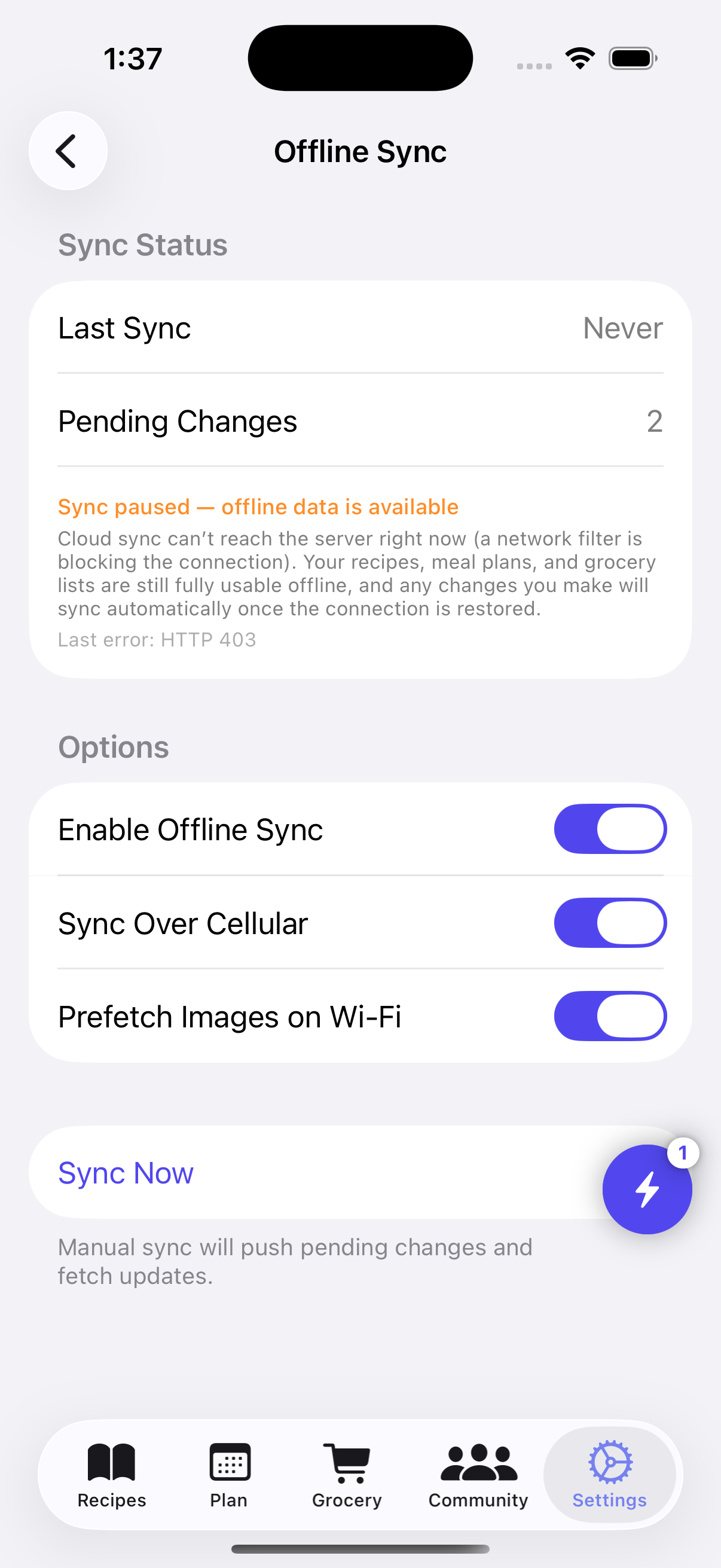
How Sync Works
momoChef uses iCloud to keep your recipes, meal plans, and grocery lists in sync across your iPhone, iPad, and the web app.
What Syncs
- Recipes and recipe books
- Meal plans and scheduled meals
- Grocery lists and checked items
- Pantry inventory
- User preferences and settings
- Cooking session history
When Sync Happens
Sync occurs automatically:
- When you open the app
- When you make changes
- Periodically while the app is open
- When triggered by changes on another device
Sync Indicators
Look for these indicators in the app:
- Syncing: A spinner appears briefly when syncing
- Synced: Your data is up to date
- Offline: Changes will sync when you're back online
- Sync Error: Tap to see details and retry
Tip: Changes sync almost instantly when you have a good internet connection. You can continue working without waiting.
iCloud Integration
momoChef leverages iCloud for seamless, secure syncing.
iCloud Requirements
- Signed in to iCloud on your device
- iCloud Drive enabled
- Enough iCloud storage available
Checking iCloud Status
- Open Settings in momoChef
- Tap Sync & Storage
- See your iCloud sync status
iCloud Storage Usage
momoChef uses your iCloud storage for:
- Recipe data (text, metadata)
- Recipe photos (optimized for storage)
- Meal plan data
- App settings and preferences
Typical storage usage is 10–100MB depending on the number of recipes and photos.
Enabling iCloud Sync
If iCloud sync isn't working:
- Go to iOS Settings
- Tap your name at the top
- Tap iCloud
- Ensure iCloud Drive is enabled
- Find momoChef in the app list and ensure it's enabled
Offline Behavior
momoChef works fully offline. Your data is stored locally and syncs when you're back online.
Offline Features
When offline, you can:
- View all your recipes
- Create and edit recipes
- Use cooking mode
- Update grocery lists
- View and edit meal plans
- Check off grocery items
Offline Limitations
Some features require an internet connection:
- Importing recipes from URLs
- Browsing community recipes
- Syncing with other devices
- Sharing recipes with others
- Using AI assistant features
Offline Indicator
When you're offline, you'll see an offline banner at the top of the screen. Changes you make will be queued and synced automatically when you're back online.
Managing Offline Changes
All changes made offline are saved locally. When you reconnect:
- The app automatically syncs your changes
- A notification confirms successful sync
- If there are conflicts, you'll be prompted to resolve them
Tip: For grocery shopping, load your list before leaving home. You can check off items offline, and everything syncs when you return.
Conflict Resolution
When the same recipe is edited on multiple devices, conflicts can occur. momoChef handles these automatically in most cases.
Automatic Resolution
momoChef uses these rules for automatic conflict resolution:
- Last edit wins: The most recent change is kept
- Field-level merging: Different fields can be merged automatically
- Recipe additions: New recipes from all devices are kept
Manual Resolution
When conflicts can't be resolved automatically:
- You'll see a conflict notification
- Tap to view the conflicting versions
- Compare the local and server versions
- Choose which version to keep, or merge manually
Preventing Conflicts
To minimize conflicts:
- Let sync complete before editing on another device
- Avoid editing the same recipe simultaneously on multiple devices
- Keep the app open briefly after making changes
Data Backup
Your data is backed up in multiple ways to ensure you never lose your recipes.
Automatic Backups
momoChef creates automatic backups:
- iCloud Backup: Included in your device's iCloud backup
- Server Backup: Your account data is backed up on our servers
- Local Cache: Data is cached locally for offline access
Manual Export
Create your own backups:
- Go to Settings
- Tap Import/Export
- Select Export All Recipes
- Choose the format (JSON, PDF, or ZIP with images)
- Save to Files or share to another location
Export Formats
- JSON: Full data export, can be re-imported
- PDF: Printable recipe collection
- ZIP: Complete backup including images
Tip: Export your recipes periodically as an extra backup. Store the file in cloud storage like Google Drive or Dropbox.
Restoring Data
If you need to restore your data, here's how.
After Reinstalling
When you reinstall momoChef:
- Sign in with the same account
- Your data syncs from iCloud automatically
- Wait for the initial sync to complete
Importing from Backup
To restore from a manual export:
- Go to Settings
- Tap Import/Export
- Select Import from File
- Choose your backup file
- Choose to merge with existing data or replace
Device to Device Transfer
Moving to a new iPhone? Your recipes transfer automatically:
- iCloud Backup: Restore from backup during setup
- Quick Start: Transfer directly from old device
- App Sign-in: Just sign in and data syncs from iCloud
Multi-Device Setup
Use momoChef on multiple iOS devices with seamless sync.
Setting Up Additional Devices
- Install momoChef on the new device
- Sign in with the same Apple ID for iCloud
- Sign in with the same momoChef account
- Wait for initial sync to complete
iPhone + iPad
momoChef is optimized for both devices:
- iPhone: Portrait-optimized for quick access
- iPad: Split-view layouts, larger cooking mode
- Both stay in sync automatically
Sync with Web App
Your iOS data also syncs with the web app:
- Access recipes from any browser
- Changes sync in real-time
- Same account, same data everywhere
Visit the Web App Guide for more.
Sync Settings
Customize sync behavior in the app settings.
Available Settings
- Auto-Sync: Toggle automatic syncing on/off
- Sync on Wi-Fi Only: Save cellular data
- Sync Photos: Include recipe images in sync
- Background Sync: Sync while app is in background
Accessing Sync Settings
- Open Settings in momoChef
- Tap Sync & Storage
- Adjust options as needed
Storage Management
If you're running low on storage:
- Go to Sync & Storage
- Tap Manage Storage
- See storage used by recipes, photos, and cache
- Clear cache or optimize photo storage
Troubleshooting Sync Issues
Sync Not Working
If sync seems stuck or not working:
- Check your internet connection
- Verify you're signed in to iCloud
- Check that iCloud Drive is enabled for momoChef
- Force quit and reopen the app
- Sign out and sign back in to your momoChef account
Data Missing After Sync
If recipes seem to be missing:
- Make sure you're signed in to the correct account
- Pull to refresh on the recipes screen
- Check if the recipes are in a different book
- Try restoring from a backup
Conflicts Not Resolving
If you keep seeing conflict notifications:
- Review and resolve each conflict manually
- Avoid editing the same recipe on multiple devices simultaneously
- Consider which device should be the "primary" for editing
Storage Full Warning
If iCloud storage is full:
- Delete unused data from iCloud
- Enable "Optimize Photos" to reduce photo storage
- Clear the app cache in settings
- Upgrade your iCloud storage plan
For more help, see our Troubleshooting Guide.
Data Security
Your recipe data is secure and private.
Security Measures
- All data is encrypted in transit (HTTPS)
- iCloud data is encrypted at rest
- Authentication required for account access
- Private recipes are only visible to you
Privacy
- Your recipes are private by default
- Only public recipes are visible to others
- We don't sell or share your data
- See our privacy policy for full details