

Account & Settings
Last updated: 2026-10-23
Manage your momoChef account, subscription, preferences, and data. Everything you need to customize your experience.
Profile Management
Your profile is how others see you in the momoChef community. Customize it to share your cooking personality.
Editing Your Profile
- Click on your avatar in the top right corner
- Select Profile
- Click Edit Profile
Profile Information
Customize these profile details:
- Display Name: How your name appears to others
- Bio: A short description of yourself (up to 500 characters)
- Social Links: Instagram, TikTok, or YouTube
- Avatar: Your profile picture
Privacy Settings
Control what others can see in Settings > Privacy:
- Profile visibility: Public, semi-private, or private
- Discoverable in search: Whether others can find you by email or search
Profile Statistics
Your profile shows:
- Number of recipes created
- Number of public recipe books
- Followers and following counts
- Member since date
Tip: Add a bio that mentions your cooking style or favorite cuisines to connect with like-minded cooks.
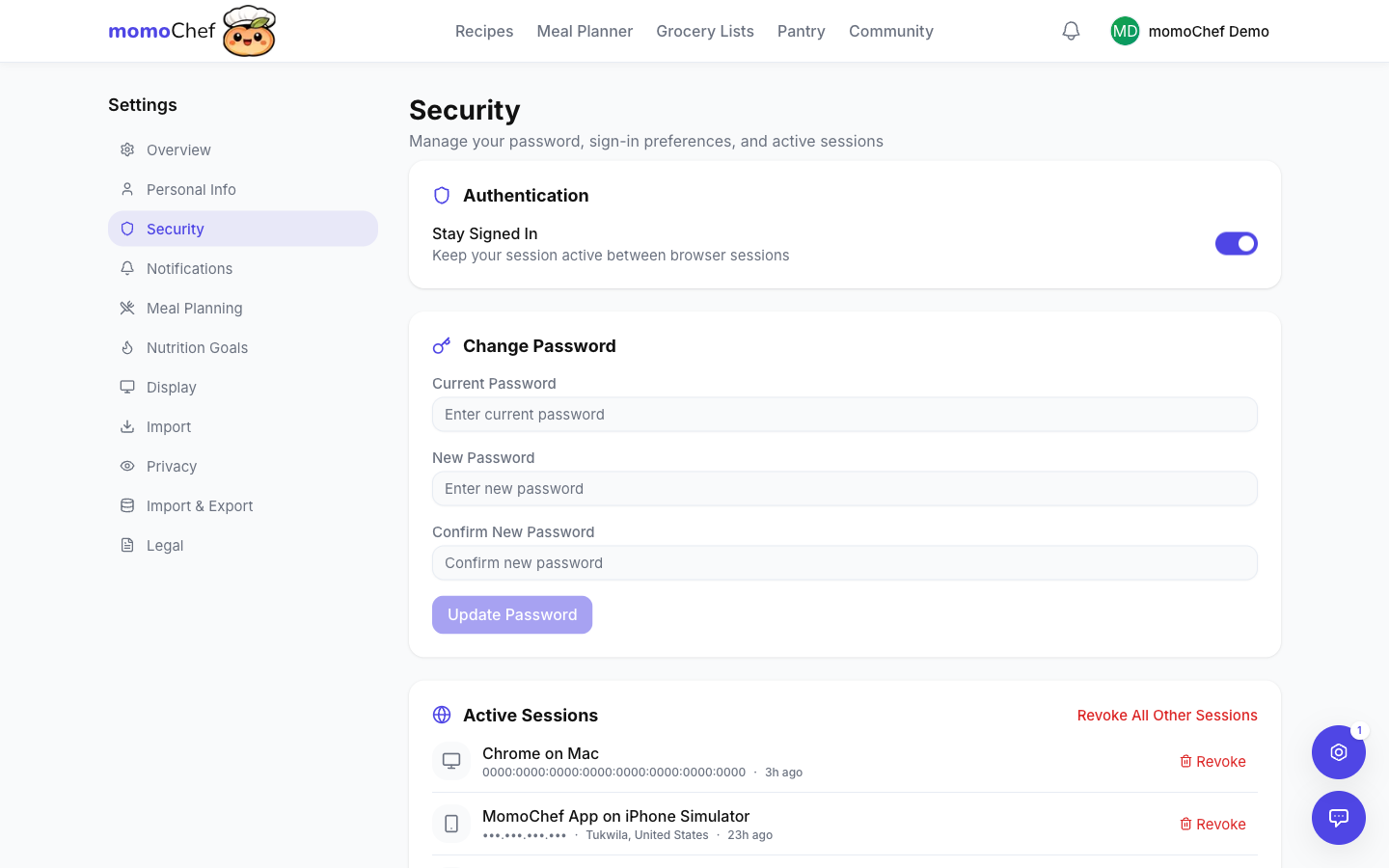
Password Change
Keep your account secure by using a strong, unique password.
Changing Your Password
- Go to Settings > Security
- Click Change Password
- Enter your current password
- Enter your new password twice
- Click Update Password
Password Requirements
Your password must be at least 8 characters long.
Forgot Password
If you can't log in:
- Click Forgot Password on the login page
- Enter your email address
- Check your email for a reset link
- Click the link and create a new password
Subscription Management
Manage your momoChef subscription, upgrade to Premium, or cancel your plan.
Viewing Your Plan
- Go to Settings > Subscription
- See your current plan and billing cycle
- View your next billing date
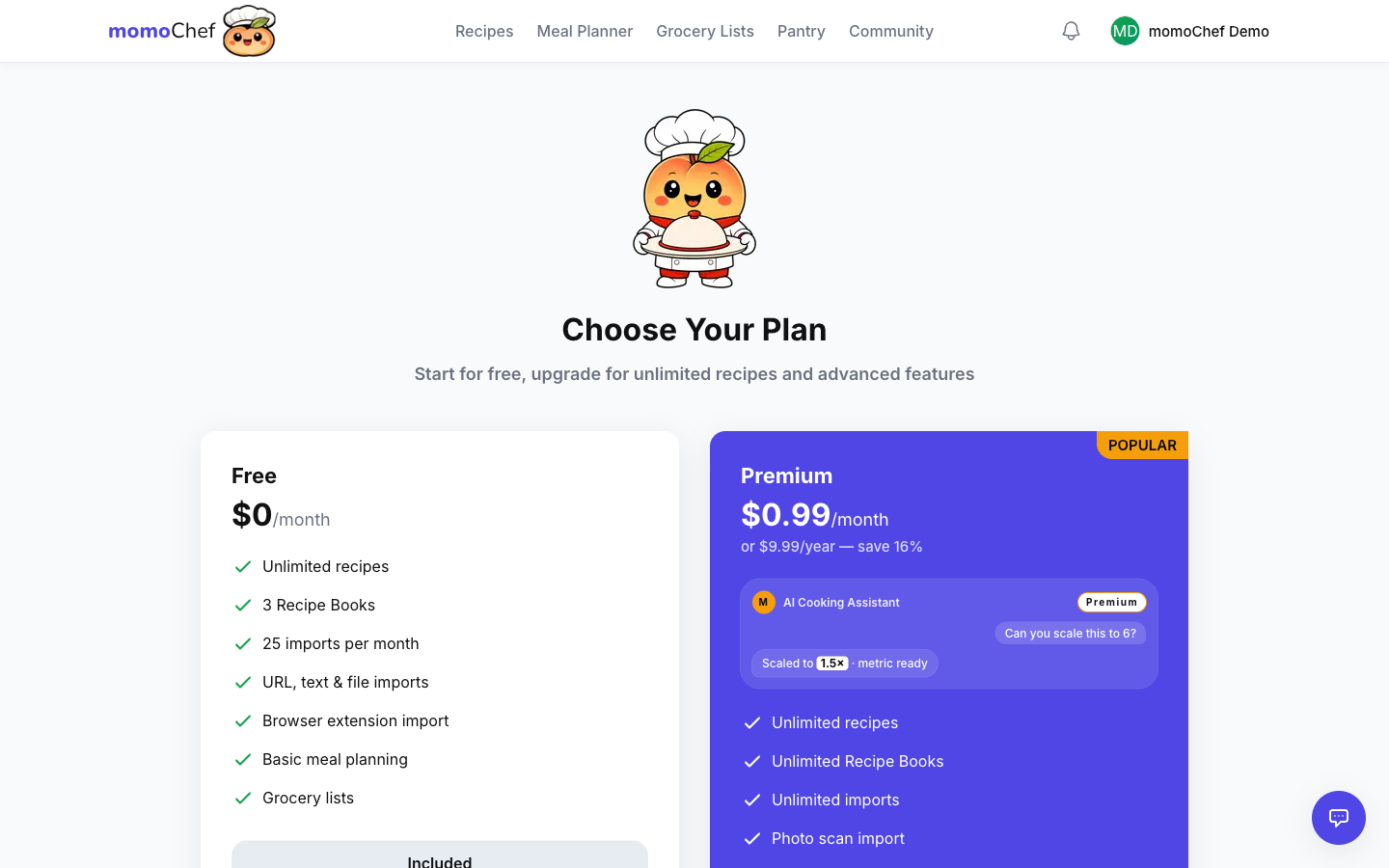
Free vs. Premium
Free Plan includes:
- Unlimited personal recipes
- Meal planning with the free week generator
- Grocery lists and pantry
- 25 recipe imports a month (never blocked, just counted)
- Community features
Premium Plan adds:
- Photo and OCR recipe import
- AI-powered features (with monthly or annual AI credits)
- Recurring meal plans
- Collaborative cooking sessions
- Calendar export
- Recipe translation
- Unlimited recipe imports
Upgrading to Premium
- Go to Settings > Subscription
- Click Upgrade to Premium
- Choose monthly or annual billing
- Enter payment information
- Confirm your upgrade
Managing Payment Methods
- Click Manage Billing in Settings > Subscription to open the secure Stripe portal
- Update or remove payment cards and download invoices there
Canceling Your Subscription
- Go to Settings > Subscription
- Click Cancel Subscription
- Confirm your cancellation
- Your Premium features remain until the end of your billing period
Tip: Annual subscriptions save you about 16% compared to monthly billing.
Notification Preferences
Control how and when momoChef notifies you about activity and updates.
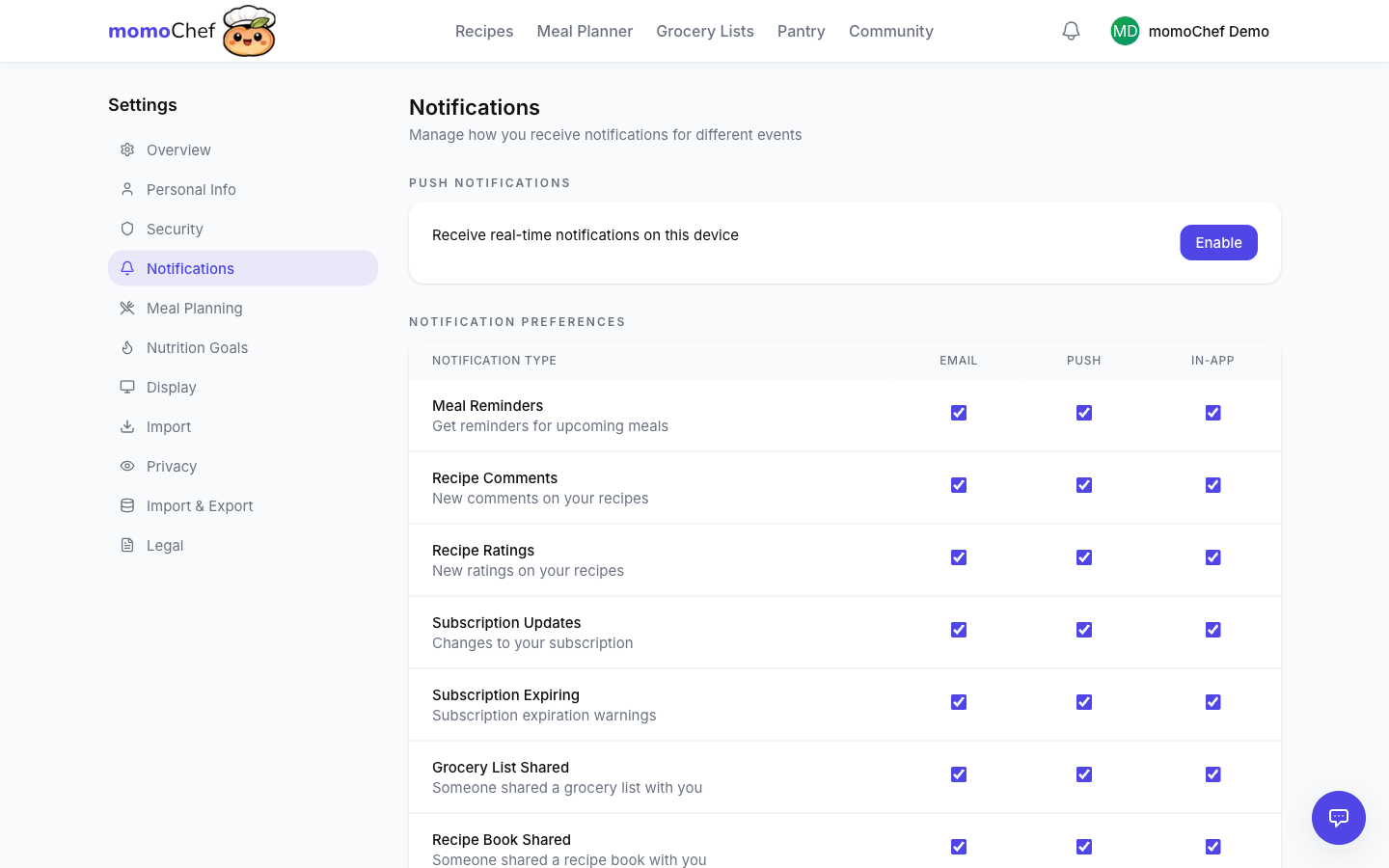
Notification Types
Manage notifications for:
- Meal Reminders
- Recipe Comments
- Recipe Ratings
- Subscription Updates
- Subscription Expiring
- Grocery List Shared
- Recipe Book Shared
- Cooking Session Invites
- System Announcements
Notification Channels
Choose how to receive notifications:
- In-App: Notifications within momoChef
- Email: Email notifications
- Push: Browser push notifications
Customizing Preferences
- Go to Settings > Preferences > Notifications
- Toggle each notification type on or off
- Choose which channels to use for each type (in-app, email, push)
Data Export
Download all your data from momoChef at any time. Your data belongs to you.
What's Included
Your export includes:
- All recipes (yours and saved from community)
- Recipe books and organization
- Meal plans
- Grocery lists
- Photos and images
- Profile information
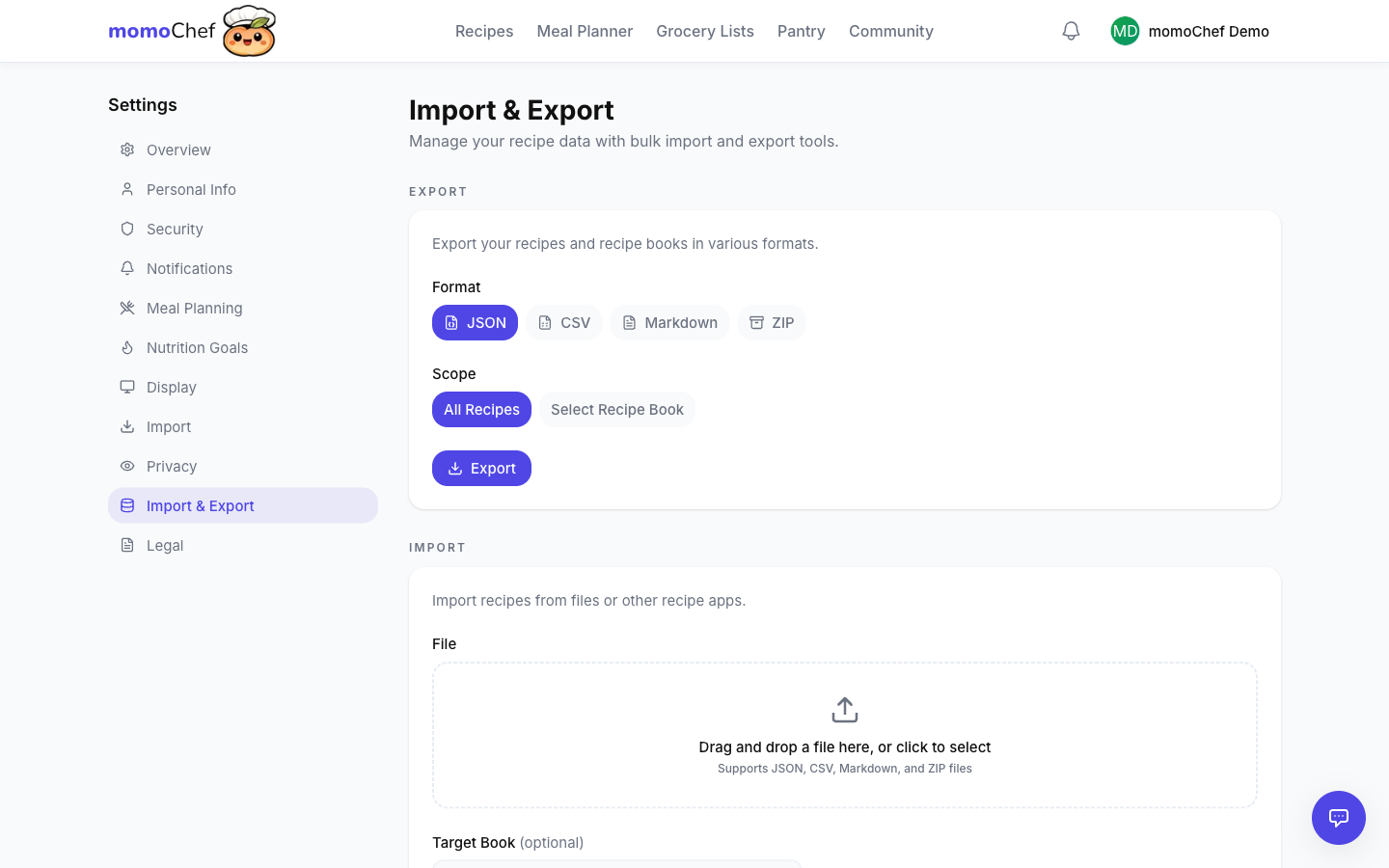
Export Formats
- JSON: Structured data for importing into other apps
- CSV: Spreadsheet-friendly recipe list
- Markdown: Text-based recipes
- ZIP: Complete archive with images
Requesting an Export
- Go to Settings > Data
- Click Export Your Data
- Choose your format
- Click Request Export
- Small libraries download immediately; larger ones run in the background — stay on this page and download the file from Recent Exports when it finishes
Importing Elsewhere
The JSON export uses a standard structure that most recipe apps can work with. (Going the other direction, momoChef imports Paprika and Pepperplate exports directly.)
Account Deletion
Permanently delete your account and all associated data.
Before You Delete
Consider these alternatives:
- Export your data: Download your recipes before deleting
- Cancel subscription: You can cancel Premium without deleting your account
- Take a break: You can simply stop using the account; your data will be preserved
What Happens When You Delete
- All your recipes are permanently deleted
- Your profile is removed from the community
- Shared recipe books you created are deleted (others' copies remain)
- Your subscription is canceled
- All data is deleted immediately and permanently
Deleting Your Account
Account deletion is available in the iPhone app:
- Open momoChef on iPhone
- Go to Settings → Security → Delete Account
- Enter your password to confirm
On the web, contact support at [email protected]. Deletion is immediate and permanent.
Warning: Account deletion is permanent and cannot be undone. Make sure to export any recipes you want to keep before deleting.
Preferences
Customize your momoChef experience with personal preferences.
Display Settings
- Theme: Light, dark, or system default (Settings > Preferences > General)
Recipe Defaults
- Unit System: Metric or Imperial (Settings > Preferences > Recipes)
Dietary Preferences
Set dietary preferences to improve recipe suggestions:
- Classic, Vegetarian, Vegan, Pescatarian
- Pollo-Pescatarian, Flexitarian, Low-Carb, Keto, Paleo
- Allergies (gluten, shellfish, and more) and ingredients to avoid
Privacy Settings
- Profile Visibility: Public, semi-private, or private (Settings > Privacy)
- Discovery: Whether others can find you by email or search
Related Topics
- Getting Started - New to momoChef? Start here
- FAQ - Common questions answered
- Contact Support - Get help with account issues