

Grocery Lists
Last updated: 2026-08-19
Create smart shopping lists that automatically organize your ingredients by aisle and consolidate duplicates. Never forget an ingredient again.
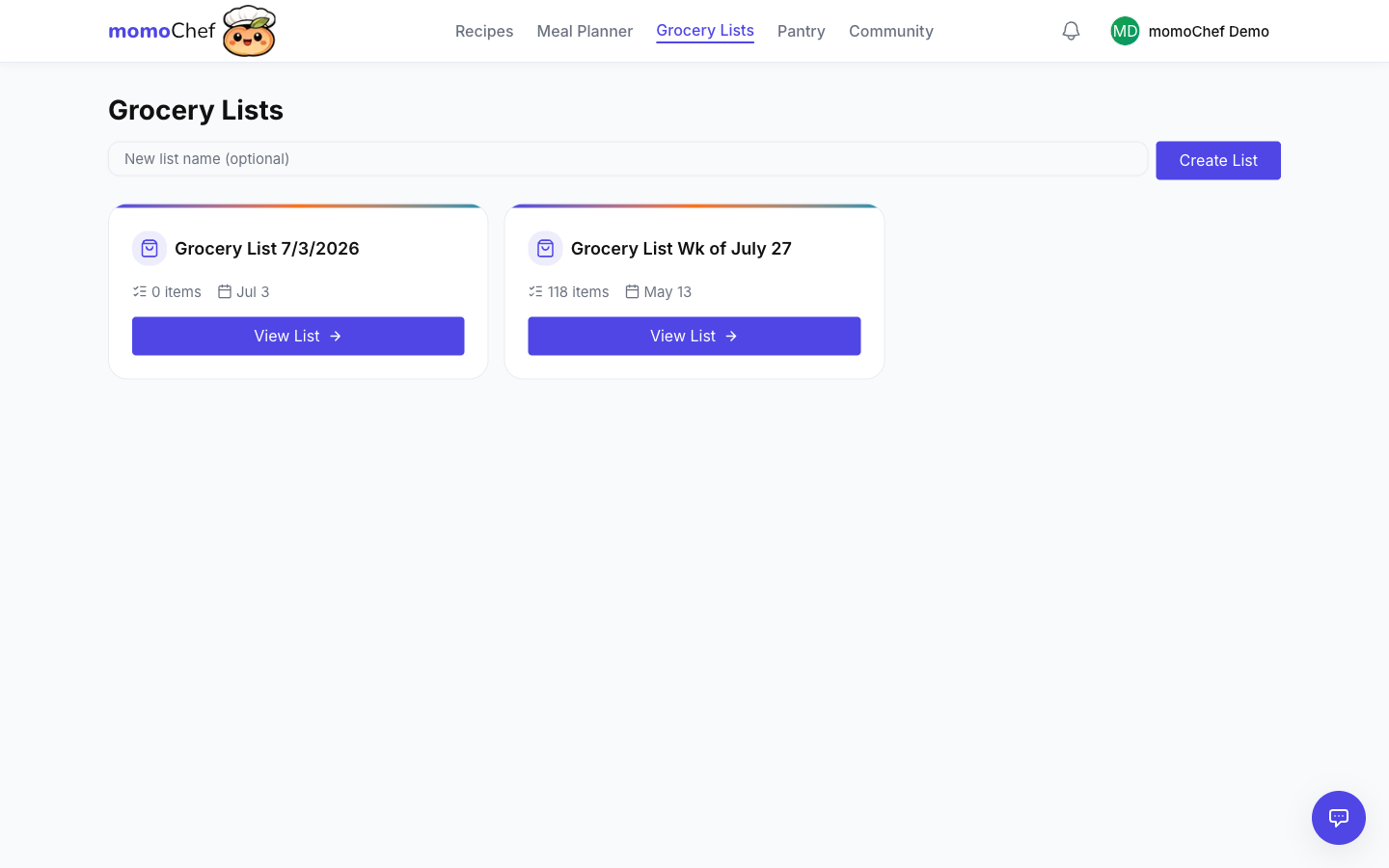
Creating Lists
Grocery lists help you stay organized while shopping. Create as many lists as you need for different stores, occasions, or time periods.
Creating a New List
- Go to Grocery Lists in the sidebar
- Click New List
- Give your list a name (e.g., "Weekly Groceries," "Party Supplies")
- Optionally choose a store template for aisle organization
- Click Create
List Templates
Start with pre-built templates for common shopping trips:
- Weekly Groceries: Basic staples and essentials
- Party Planning: Snacks, drinks, and supplies
- Holiday Baking: Baking ingredients and decorations
- BBQ/Grilling: Grilling essentials
Multiple Lists
Keep separate lists for different purposes:
- Different stores (Costco, Trader Joe's, local market)
- Weekly meal prep vs. special occasions
- Household staples vs. recipe-specific items
Tip: Pin your most-used list to the top for quick access.
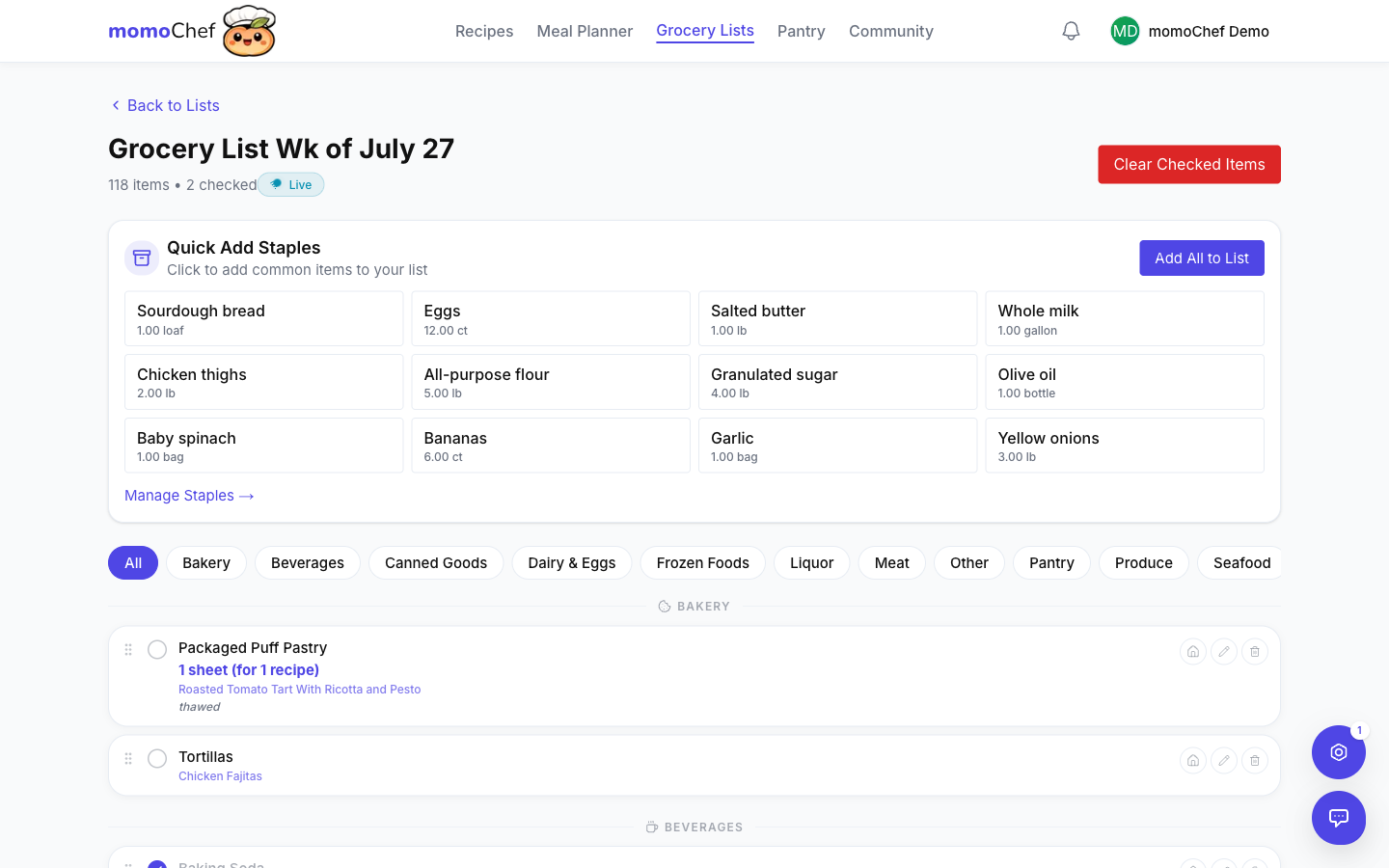
Adding Items Manually
Add items to your list by typing them in directly.
Quick Add
- Click the Add Item field at the top of your list
- Type the item name
- Press Enter to add it
- Continue adding items
Adding with Details
For more control, add items with quantity and notes:
- Type quantity first: "2 gallons milk"
- Add notes in parentheses: "Apples (Honeycrisp)"
- Specify size: "Olive oil (large bottle)"
Smart Parsing
momoChef automatically parses what you type:
- Quantity: "2 lbs chicken" becomes Quantity: 2, Unit: lbs, Item: chicken
- Category: Items are auto-categorized by aisle
- Duplicates: Alerts you if the item is already on the list
Voice Input
On supported devices, use voice input to add items hands-free:
- Click the microphone icon in the add item field
- Speak your item
- The item is transcribed and added
Adding from Recipes
Add all ingredients from a recipe to your grocery list with one click.
From Recipe Page
- Open any recipe
- Click Add to Grocery List
- Select which grocery list to add to
- Review the ingredients (uncheck any you already have)
- Click Add Items
From Meal Plan
- Open your meal plan
- Click Add Week to Grocery List
- Select the date range
- Choose which meals to include
- All ingredients from selected meals are added
Selective Adding
When adding from a recipe, you can:
- Uncheck ingredients you already have
- Modify quantities before adding
- Add notes to specific items
Tip: Use the pantry feature to automatically exclude staples you always have on hand.
Auto-Consolidation
When you add ingredients from multiple recipes, momoChef automatically combines duplicates.
How Consolidation Works
If two recipes call for the same ingredient:
- Recipe A: 2 onions
- Recipe B: 1 onion
- Result: 3 onions on your list
Unit Conversion
Different units are converted automatically:
- Recipe A: 1 cup sugar
- Recipe B: 4 tablespoons sugar
- Result: 1 1/4 cups sugar
Manual Adjustment
You can always edit consolidated items:
- Click on an item to edit the quantity
- Split a consolidated item back into separate entries
- Mark that you already have enough of an item
When Consolidation Does Not Happen
Items are kept separate when they are genuinely different:
- Different varieties (yellow onions vs. red onions)
- Different forms (fresh garlic vs. garlic powder)
- Specific notes (milk vs. milk (oat))
Aisle Categorization
Items are automatically organized by grocery store section for efficient shopping.
Default Categories
Items are sorted into these categories:
- Produce: Fruits, vegetables, fresh herbs
- Dairy: Milk, cheese, yogurt, eggs
- Meat and Seafood: Fresh and frozen proteins
- Deli: Sliced meats, prepared foods
- Bakery: Bread, baked goods
- Pantry: Canned goods, dry goods, spices
- Frozen: Frozen foods
- Beverages: Drinks, alcohol
- Household: Paper goods, cleaning supplies
- Personal Care: Toiletries, medicine
Custom Aisle Order
Customize the order to match your store's layout:
- Click Edit Categories in your list
- Drag categories to reorder
- Save your custom layout
Store Templates
Save different aisle orders for different stores:
- Create a template for each store you shop at
- Switch between templates when shopping
- Share templates with family members
Tip: Group items by aisle order to make your shopping trip faster and avoid backtracking.
Checking Off Items
Mark items as purchased as you shop to track your progress.
Marking Items Complete
- Click the checkbox next to any item
- Completed items move to the bottom of the list
- See your progress with the completion counter
Undoing Check-offs
Accidentally checked something? No problem:
- Scroll to the completed section
- Click the checkbox again to uncheck
- Or click Undo immediately after checking
Clear Completed
After shopping:
- Click Clear Completed to remove checked items
- Or keep them for reference on your next trip
Quantity Tracking
For items with multiple quantities:
- Check off partial quantities ("Got 2 of 5")
- The remaining quantity stays on your list
Sharing Lists
Share grocery lists with family members or roommates for collaborative shopping.
Sharing a List
- Open the grocery list you want to share
- Click Share in the list header
- Enter email addresses or select from your contacts
- Choose permission level (view or edit)
- Send the invitation
Permission Levels
- Can View: Recipients can see the list but not modify it
- Can Edit: Recipients can add, remove, and check off items
- Owner: Full control including sharing and deleting
Real-time Sync
Shared lists update in real-time:
- When someone adds an item, everyone sees it instantly
- When someone checks off an item, it updates for everyone
- Perfect for splitting up shopping duties
Shared List Notifications
Stay informed about shared list activity:
- Get notified when items are added
- Receive alerts when someone starts shopping
- See who checked off each item
Tip: Split up the store - one person handles produce while another gets dairy. Check off items as you go to avoid doubling up.
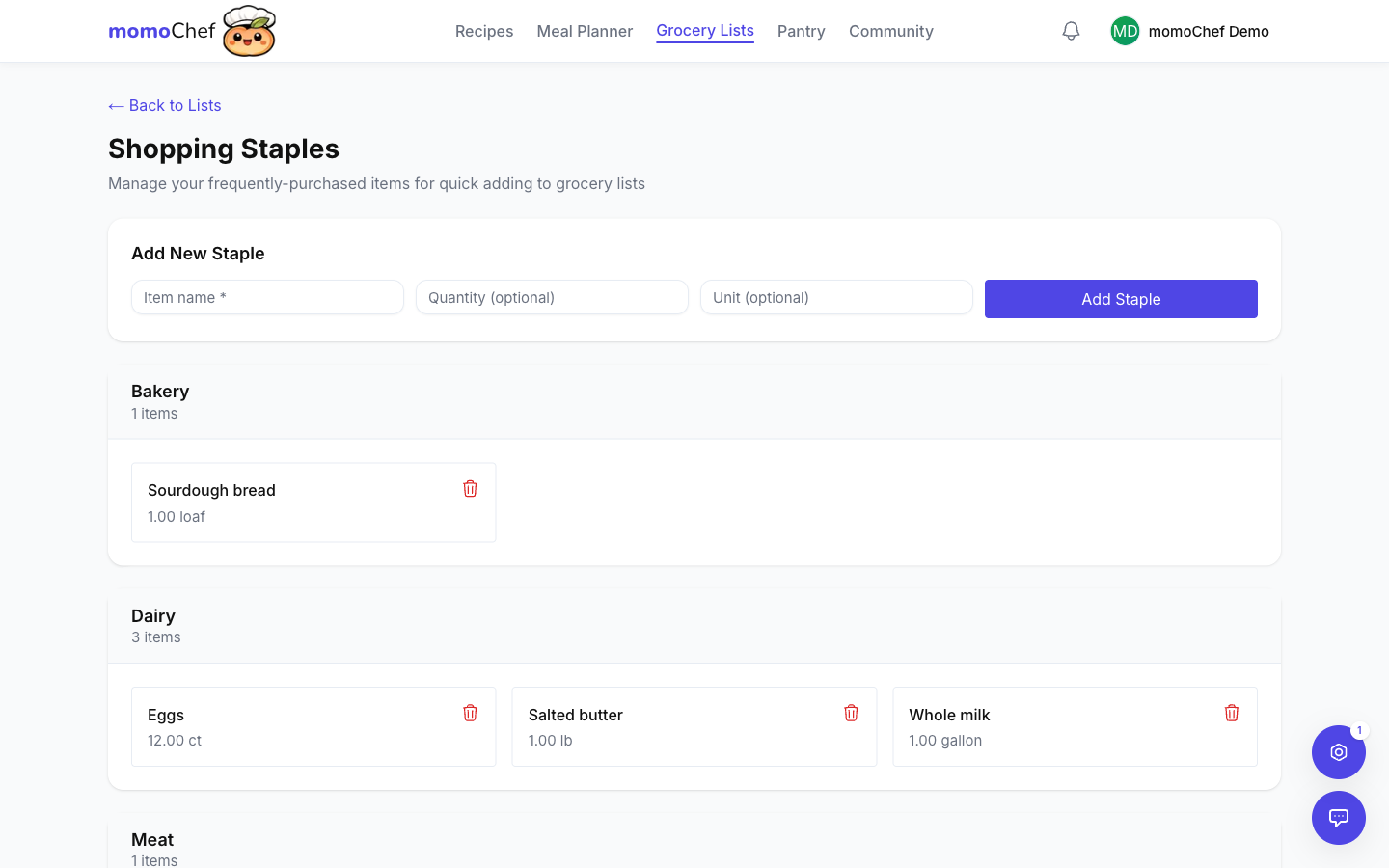
Pantry Staples
Track what you have at home to avoid buying duplicates.
Marking Items as "In Pantry"
When adding from recipes:
- Check "Already have" for items in your pantry
- These items won't be added to your list
Managing Your Staples List
Mark items you always keep stocked:
- These are automatically unchecked when adding from recipes
- Manage your staples list in Settings
- Add common items like salt, pepper, oil, and basic spices
Pro Tips
- Check your pantry before shopping to avoid buying things you already have
- Organize your list by store layout to minimize backtracking
- Keep a running list during the week - add things as you notice you are running low
- Use the pantry staples feature to avoid buying basics you always have on hand
- Take a screenshot of your list for offline access while in the store
Related Topics
- Meal Planning - Plan your meals and generate grocery lists
- Recipe Management - Add recipe ingredients to lists
- Sharing and Collaboration - Share lists with family